Desktop app guide
History — how it works in the AutobotSignal desktop app
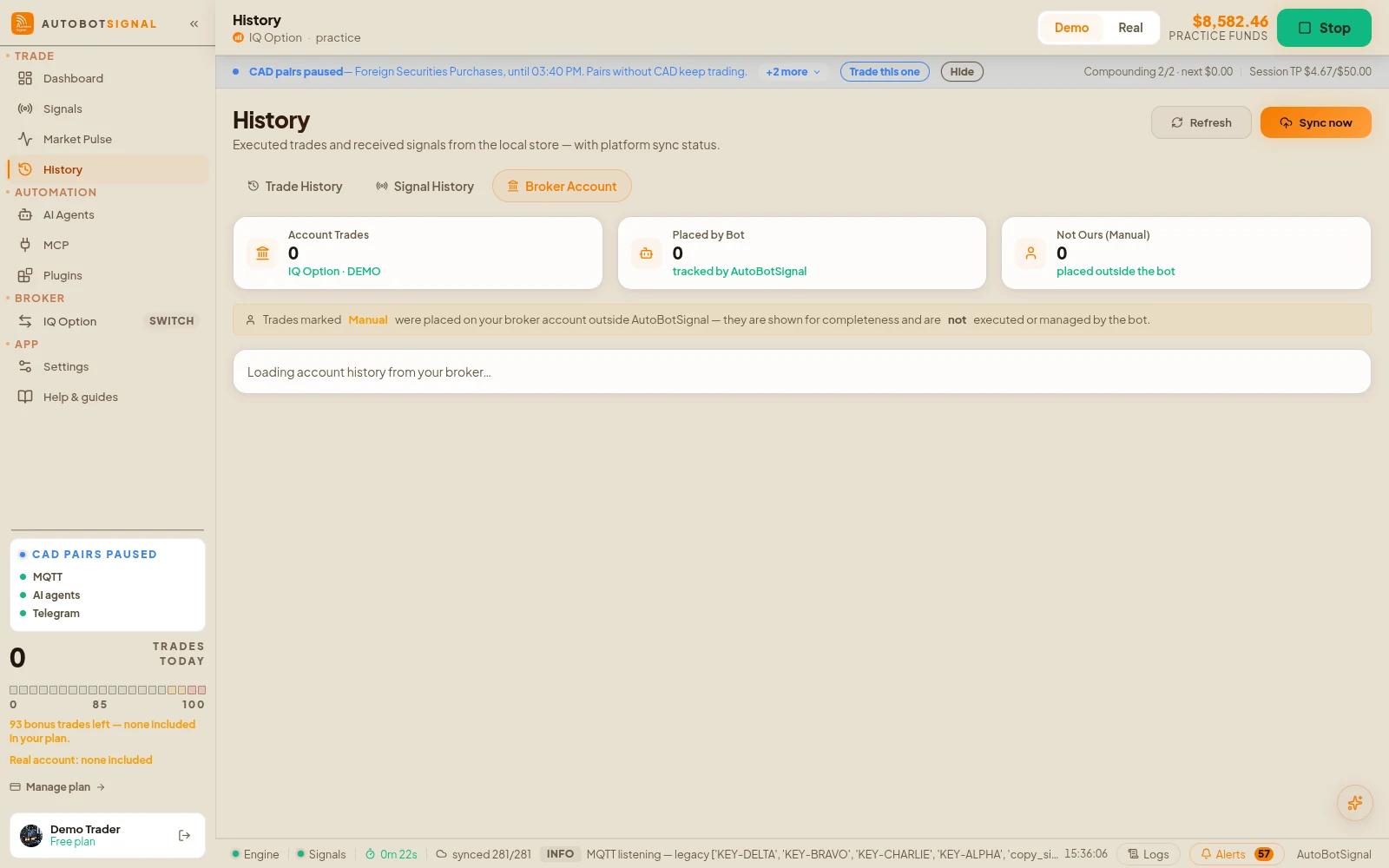
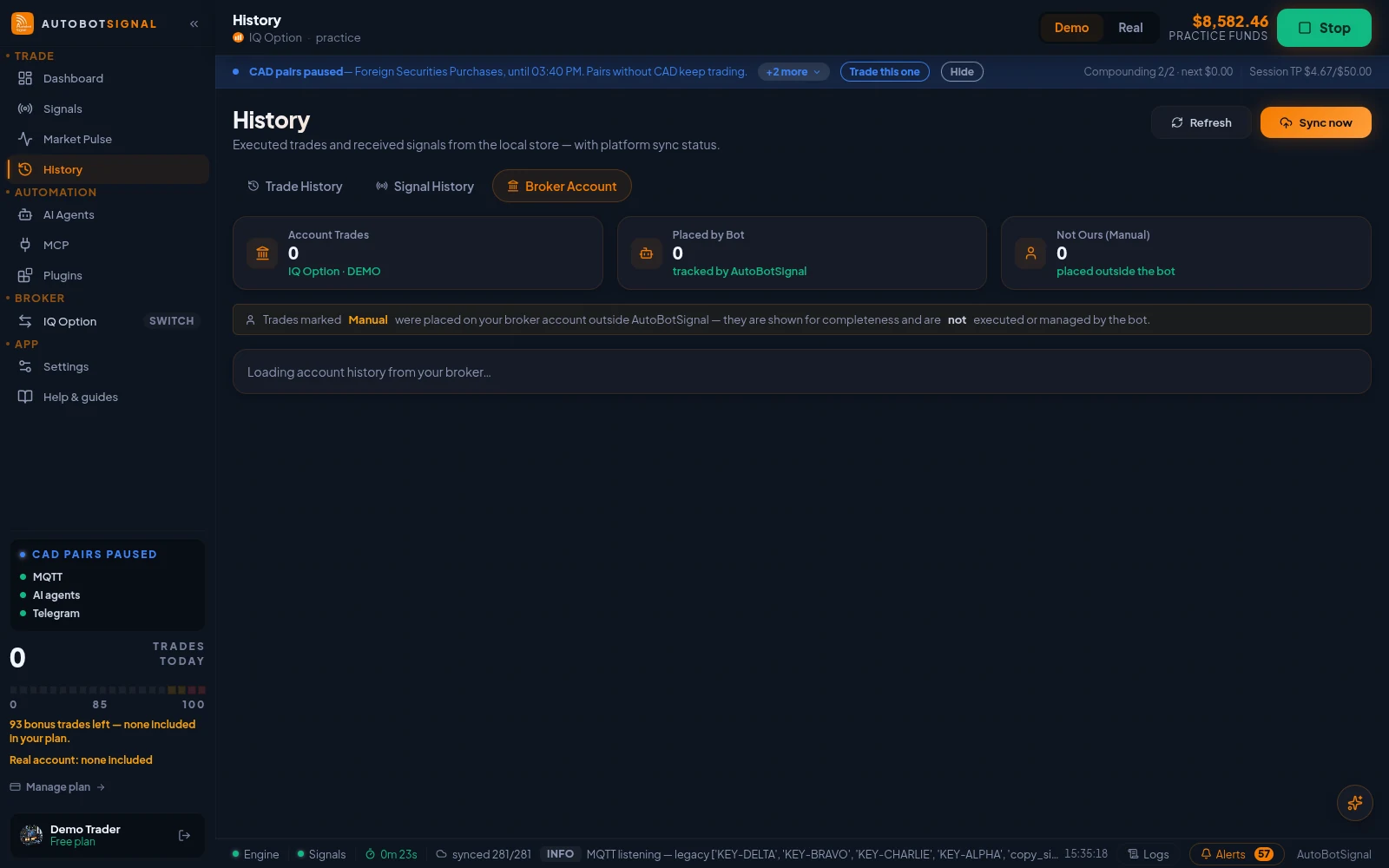
Everything this bot recorded, read from the local store on this machine: the trades it executed, the signals it received this session, and — where the broker supports it — your broker account’s own trade list, including trades you placed yourself. Sync now uploads local trades to the platform so they appear on the web dashboard and count toward rankings.
History in the desktop app
Real screenshots of the current release on a practice account.
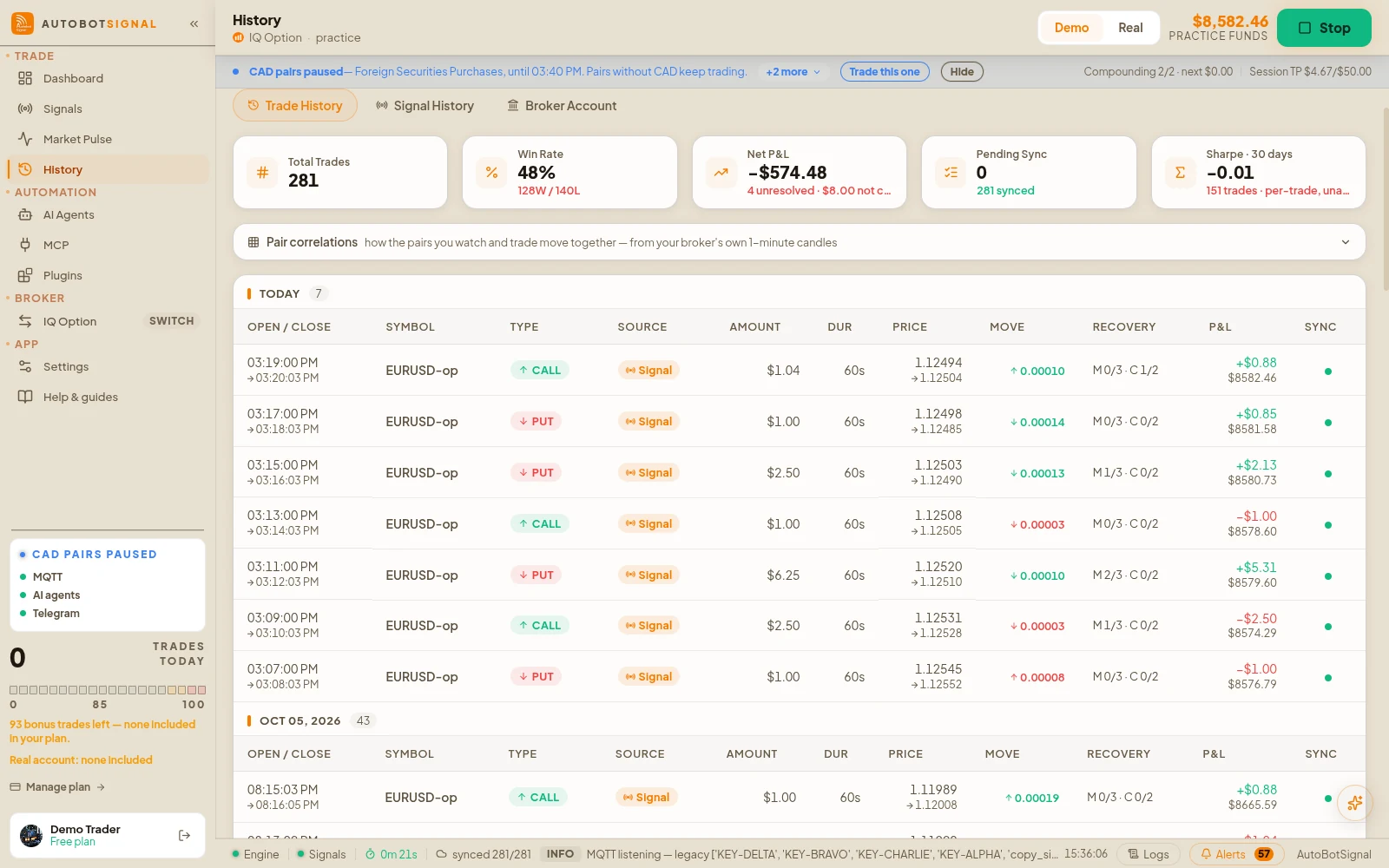
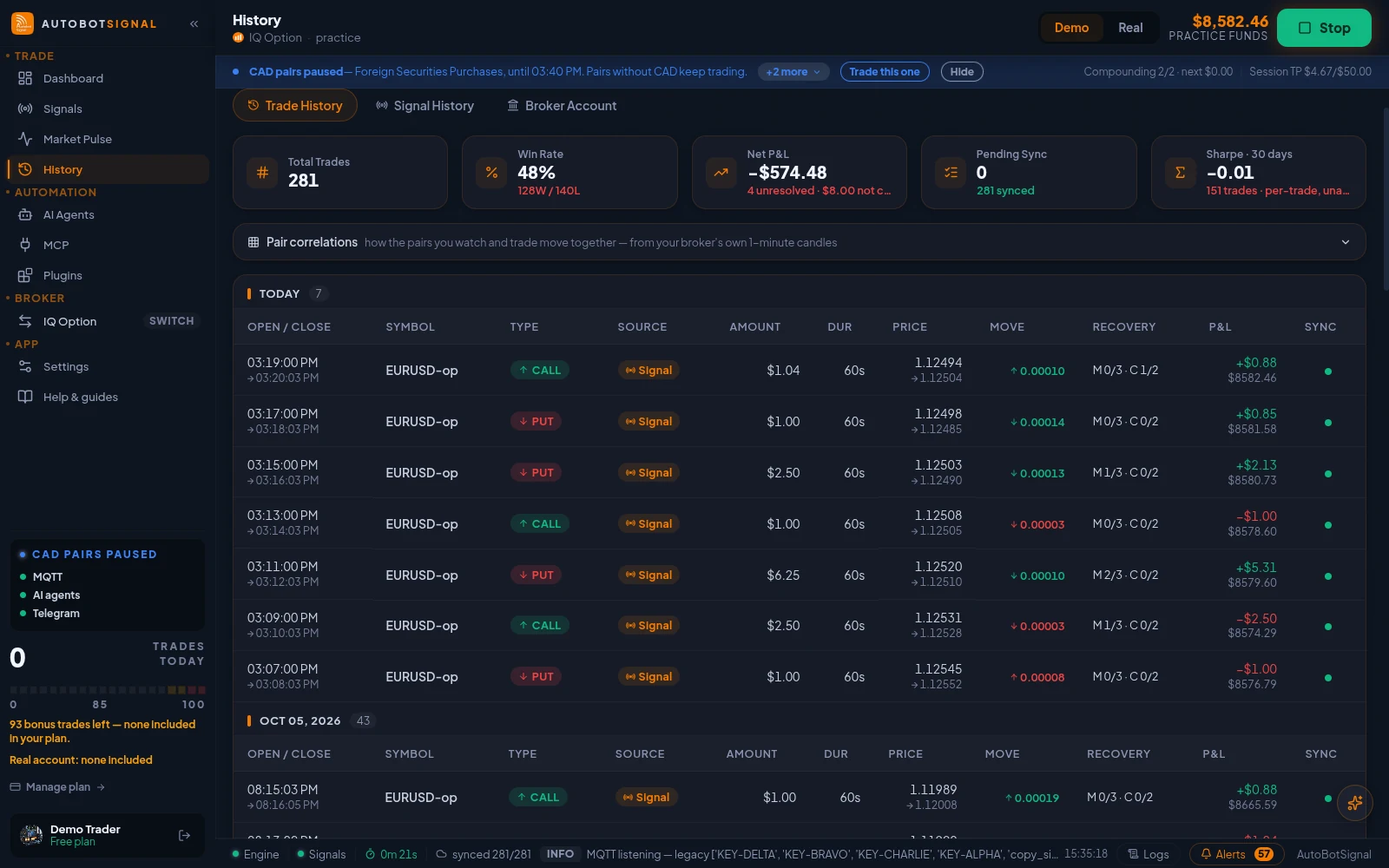
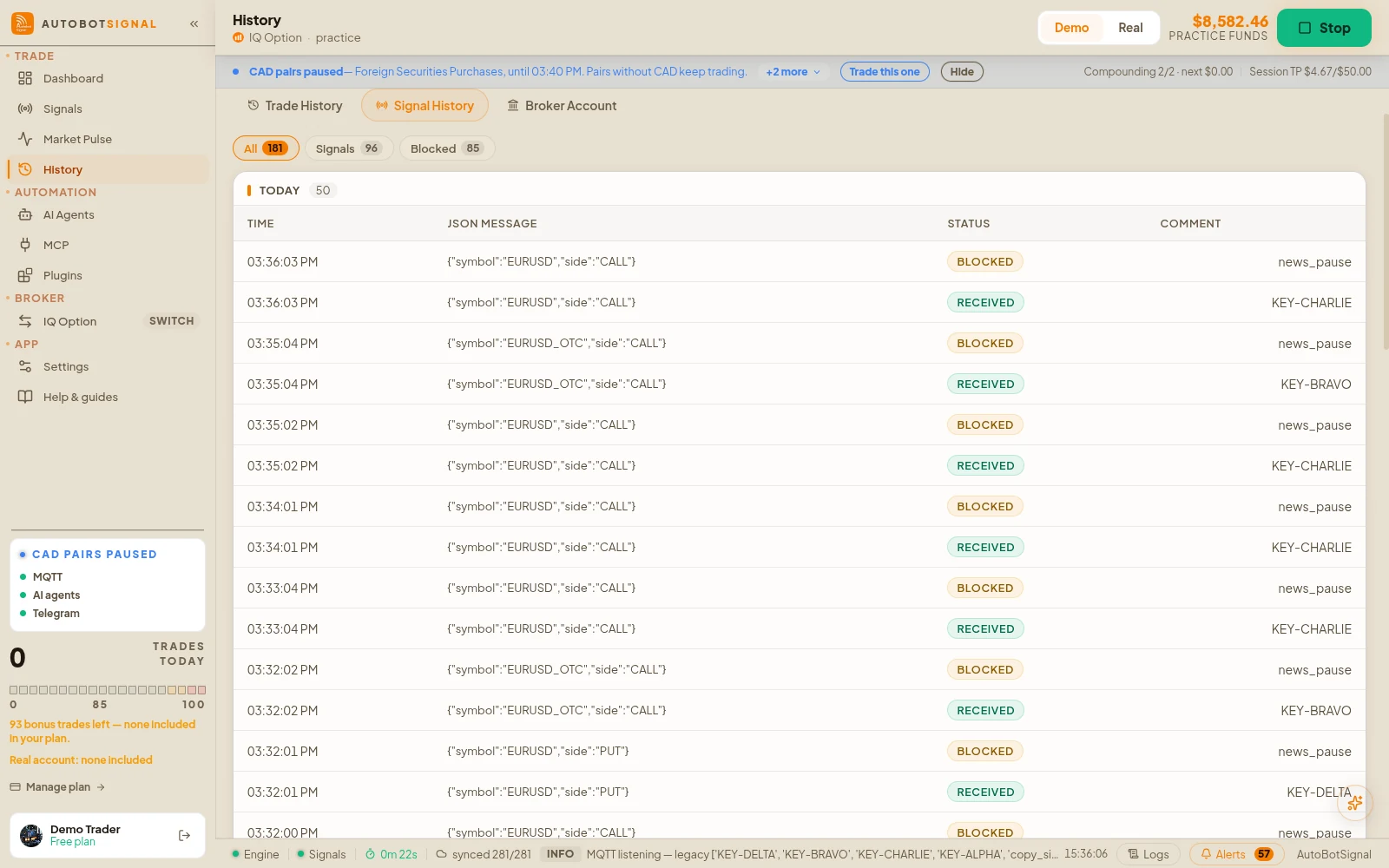
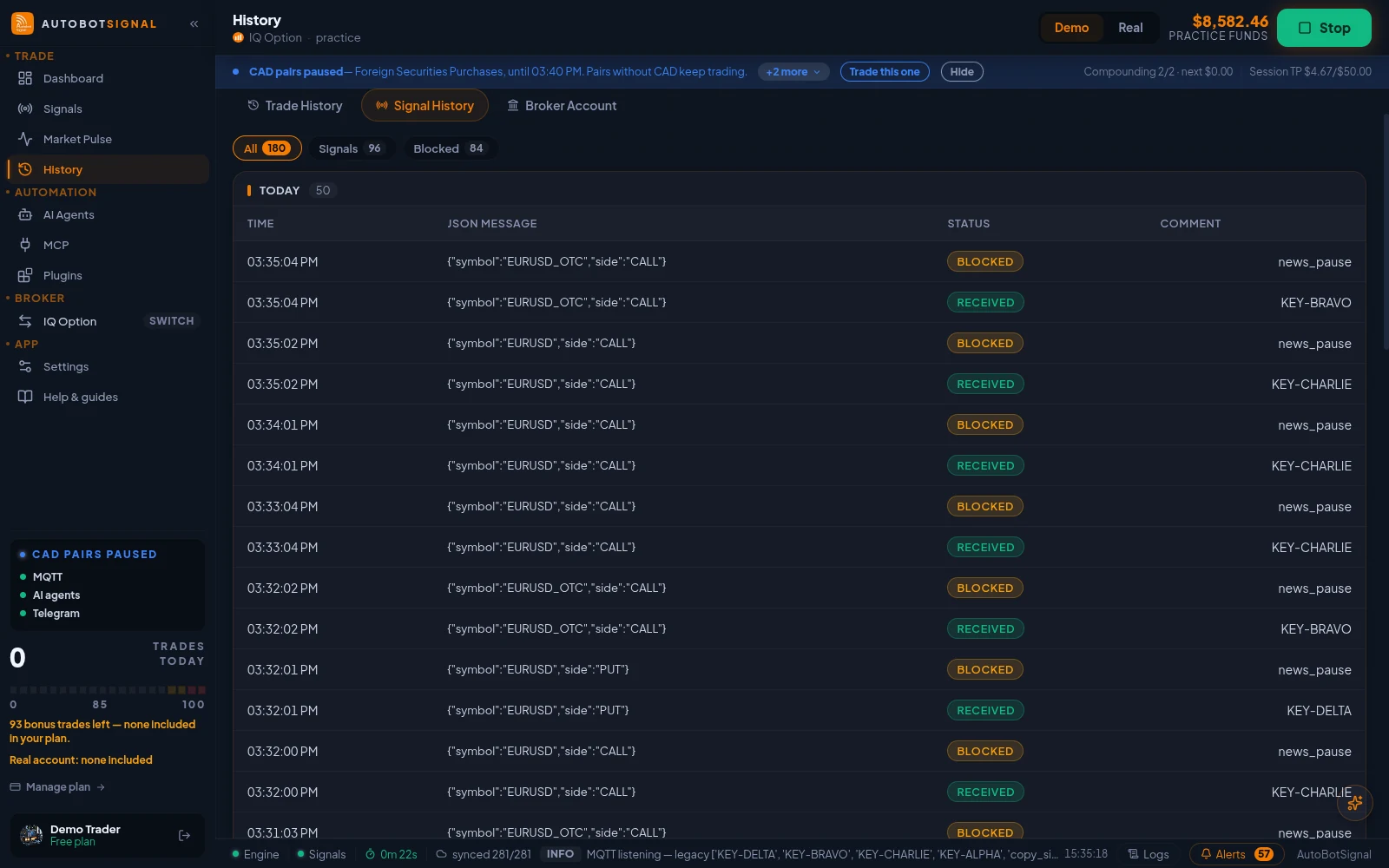
How History works
- 1
Trade History
Every order the bot placed, grouped by day, with open and close price, requested duration, stake, result, and which martingale or compounding step it was on at the time.
- 2
Signal History
Signals received and signals blocked in this session, with the block reason. It is session-scoped — the durable record lives on the web dashboard once trades are synced.
- 3
Broker Account
Pulled straight from the broker, so it also shows trades placed outside AutoBotSignal. Not every broker exposes this; the page says so plainly when yours does not.
- 4
Sync now
Uploads any pending local trades to the platform. Trades are always written locally first, so an outage delays the upload but never loses the trade.
Good to know
What the app does, and does not do, here
- Pending is the count of trades not yet uploaded, not the count of failed trades.
- Failed / error rows are orders the broker rejected. They never opened, so they are excluded from the win rate.
- Requested duration and the duration the broker actually used can differ — some brokers snap an order onto their own expiry ladder. The row records what was really placed.
- This page is read-only. Nothing here deletes or re-runs a trade.
Start on a demo account. Automated trading can lose money and no win rate or profit is guaranteed — you are responsible for the rules you configure.
Run it on demo first
Install the desktop app, connect a practice account and see every rule on this page enforced before any real money is involved.