Help centre
Trading bot help centre
The questions people actually ask us, answered plainly. If yours is not here, the support chat is on every page and a human reads every ticket.
Start on a demo account — always
Getting started, end to end
Five steps from a new account to a running session. This is the whole path — there is nothing hidden behind it.
- 1
Create your account and install the app
Sign up on autobotsignal.io, then install the desktop app from the downloads hub. Automation runs on your own machine, not on our servers.
- Windows 10/11 or macOS 12+
- Android: Deriv only, from Google Play
- No browser version
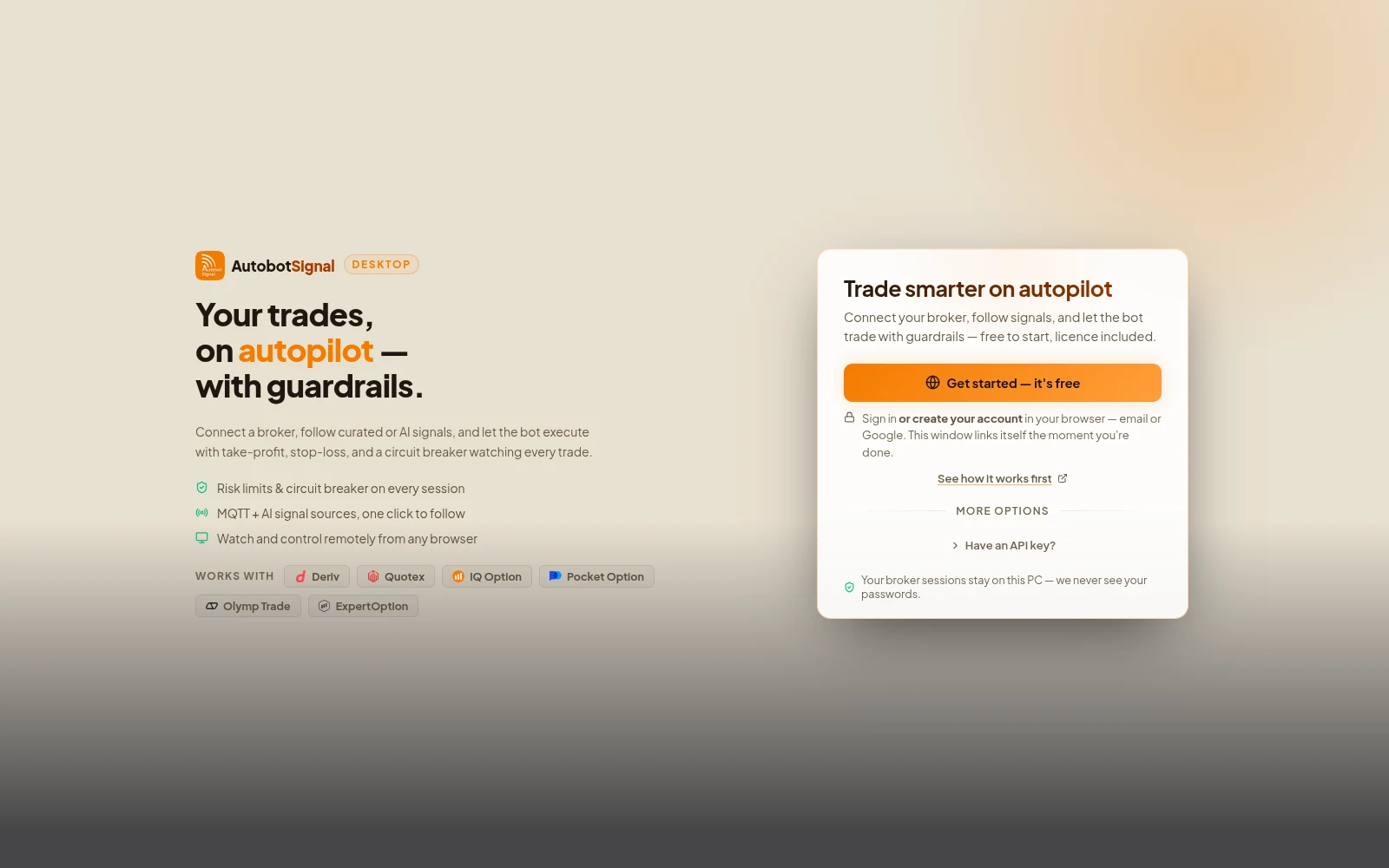
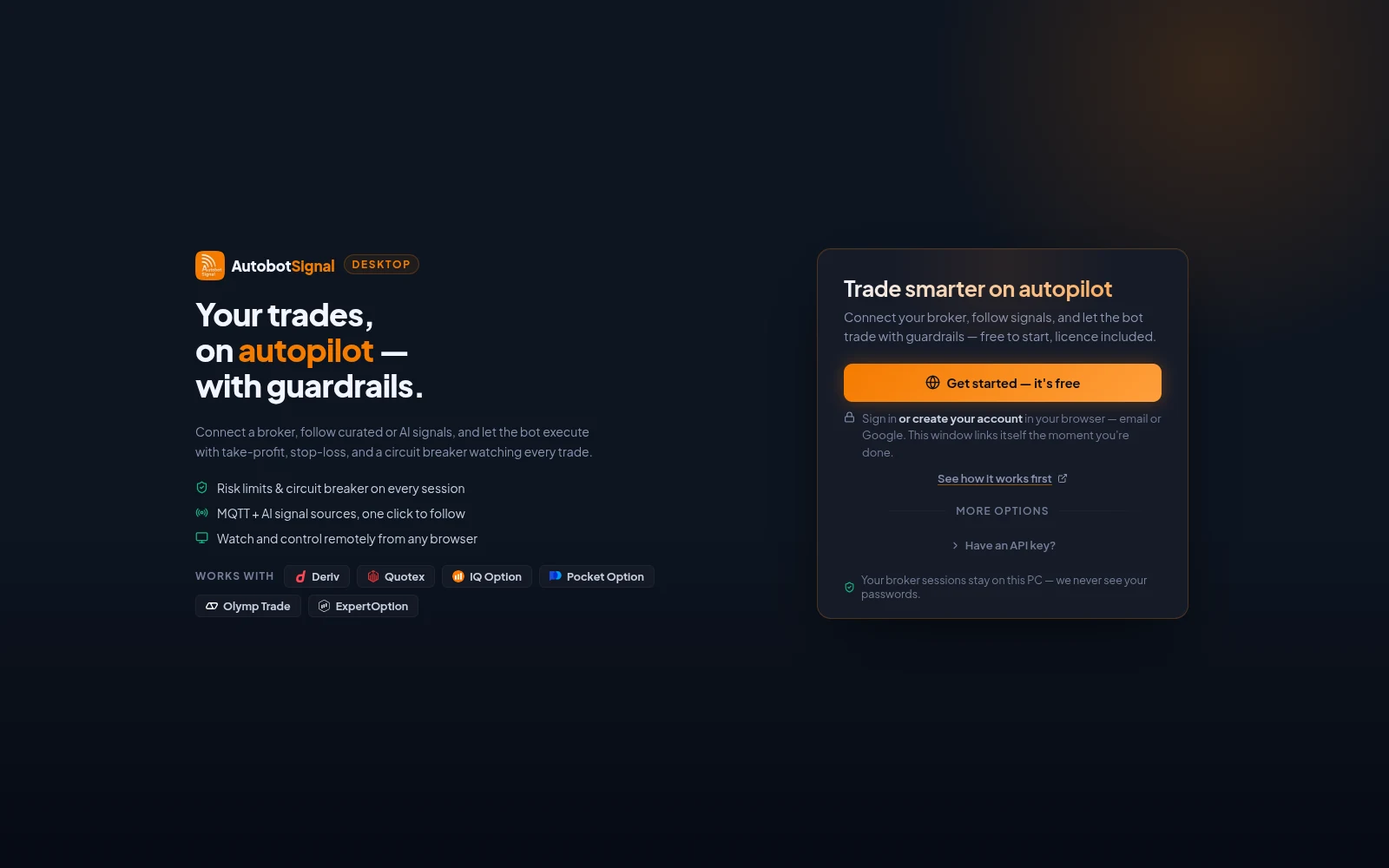
The desktop app after installing: Get started creates or signs in to your account in the browser, and the window links itself when you are done. - 2
Connect your broker
Open Brokers, pick your broker and press Connect. For Quotex, Pocket Option, IQ Option, Olymp Trade and Expert Option a window opens on the broker's own login page — sign in there exactly as you normally do, including with Google, Facebook or Apple. Deriv is different: you paste an API token from your Deriv account settings and no window opens.
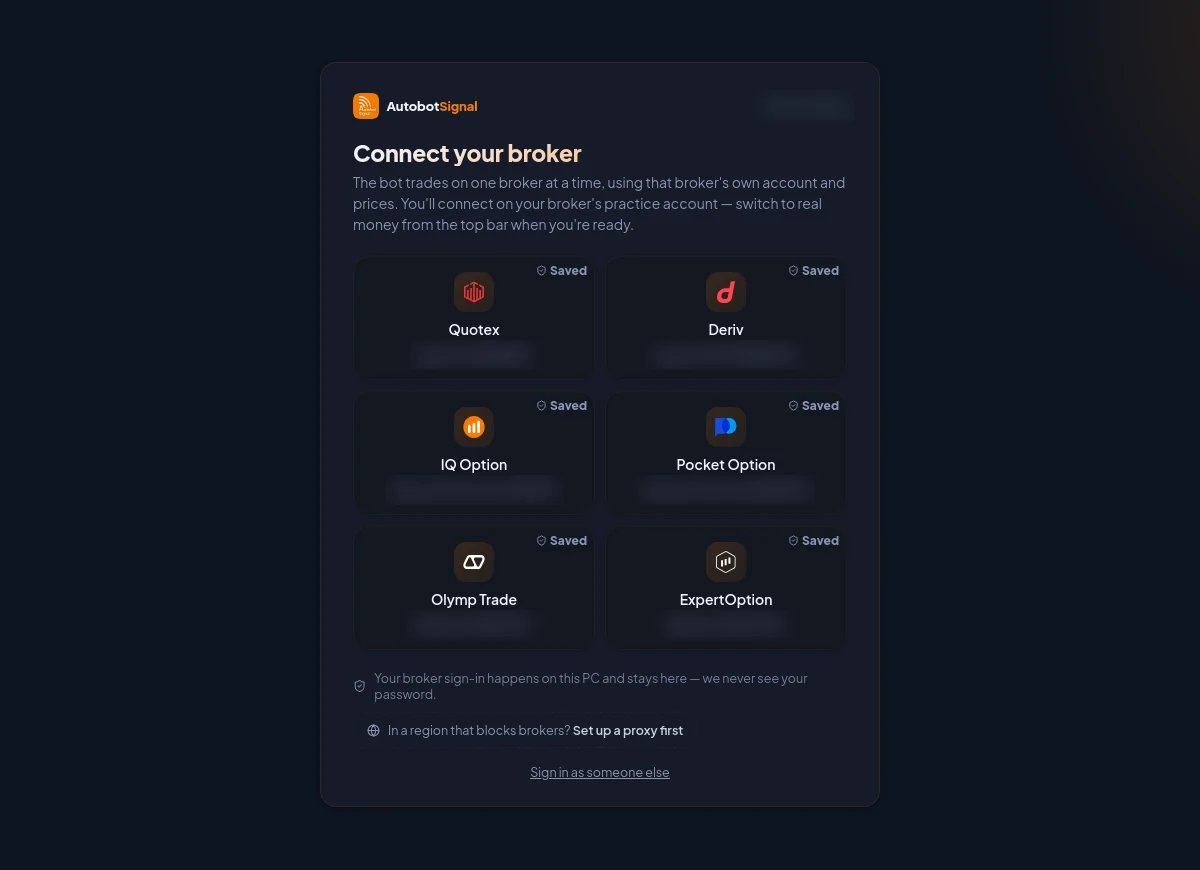
The Brokers screen before anything is connected: one card per broker. A card marked Saved resumes a previous sign-in; otherwise the broker's own sign-in opens in a secure window on your PC. - 3
Choose where your trades come from
The built-in AI agents, a Telegram channel, a TradingView alert, a MetaTrader alert, or another trader's signal key. AutobotSignal executes signals — it is not itself the source of them.
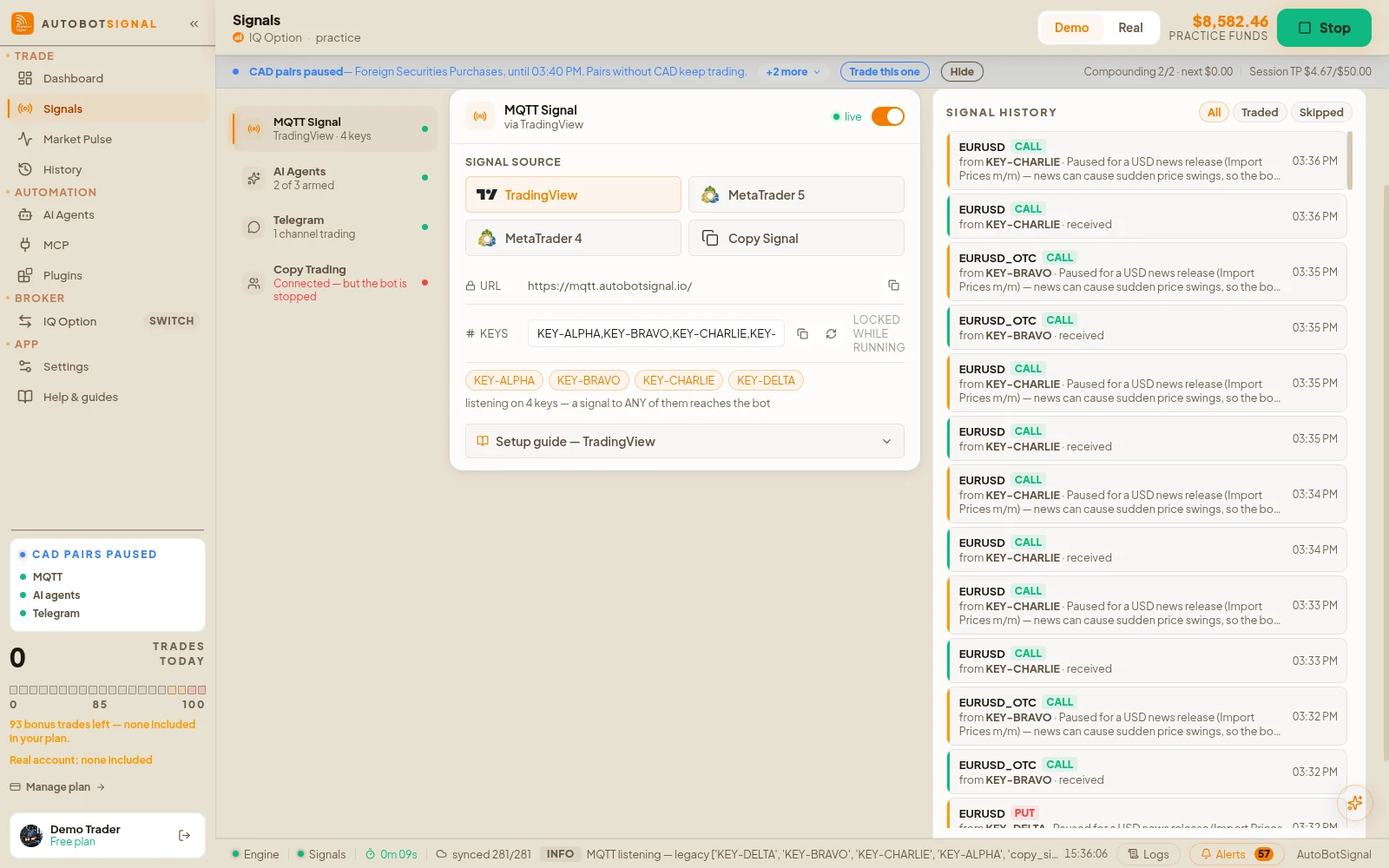
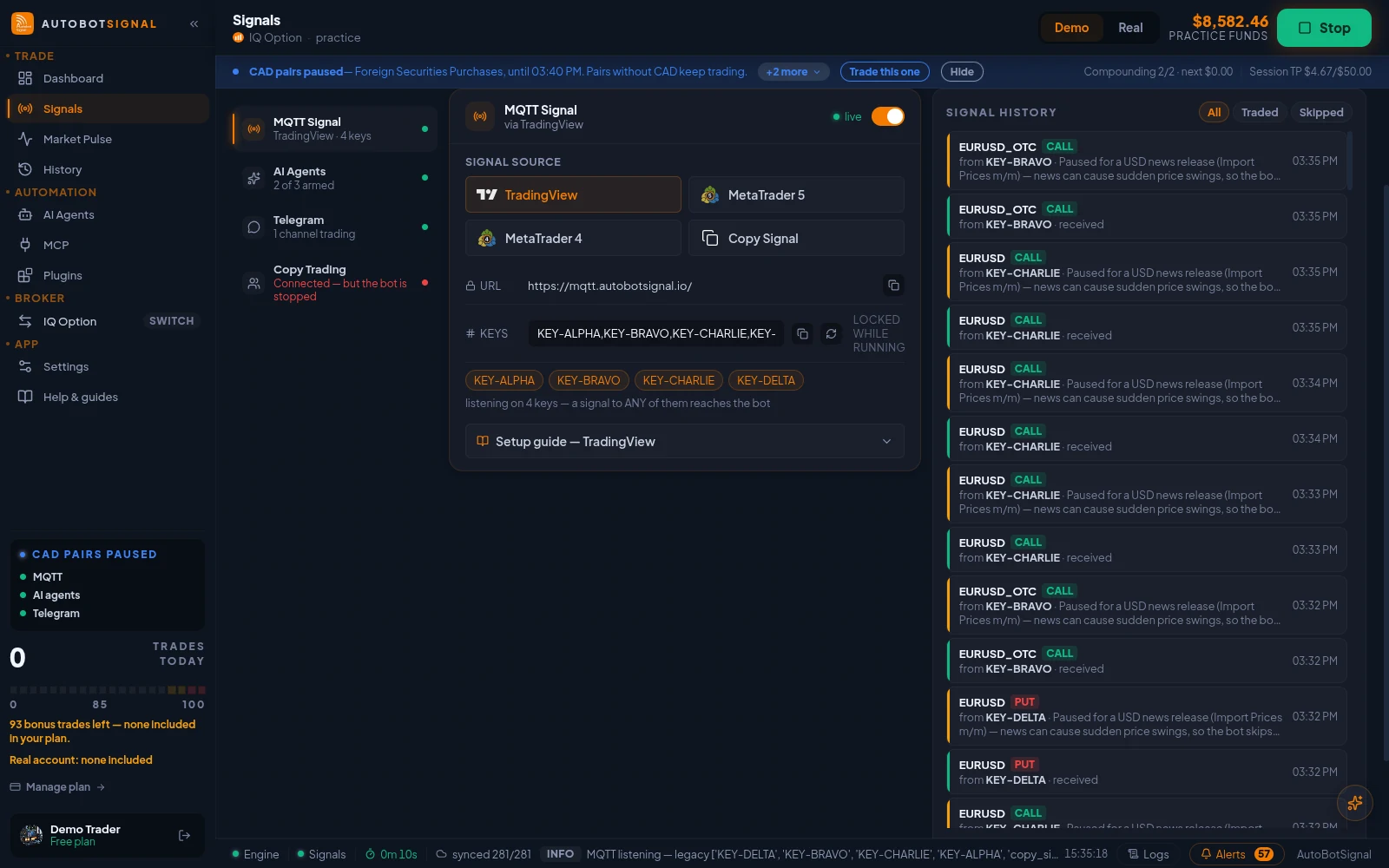
Signals → Sources → MQTT Signal: the webhook URL, your signal keys, and the TradingView, MetaTrader 5, MetaTrader 4 and Copy Signal senders. - 4
Set your risk rules
Stake per trade, maximum trades per day, stop-loss and take-profit. Every trade is gated by these, and the journal logs each refusal with the rule that caused it.
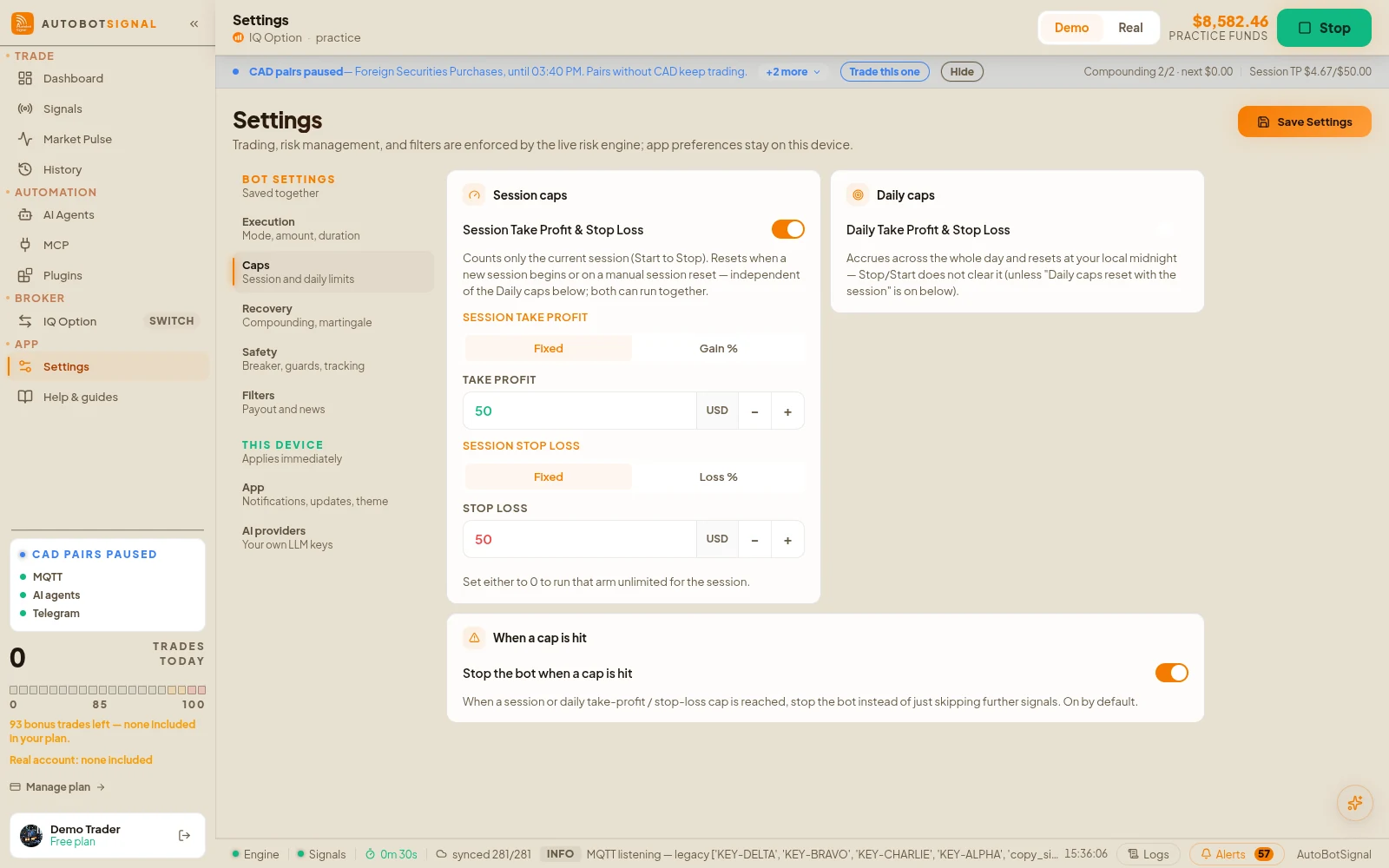
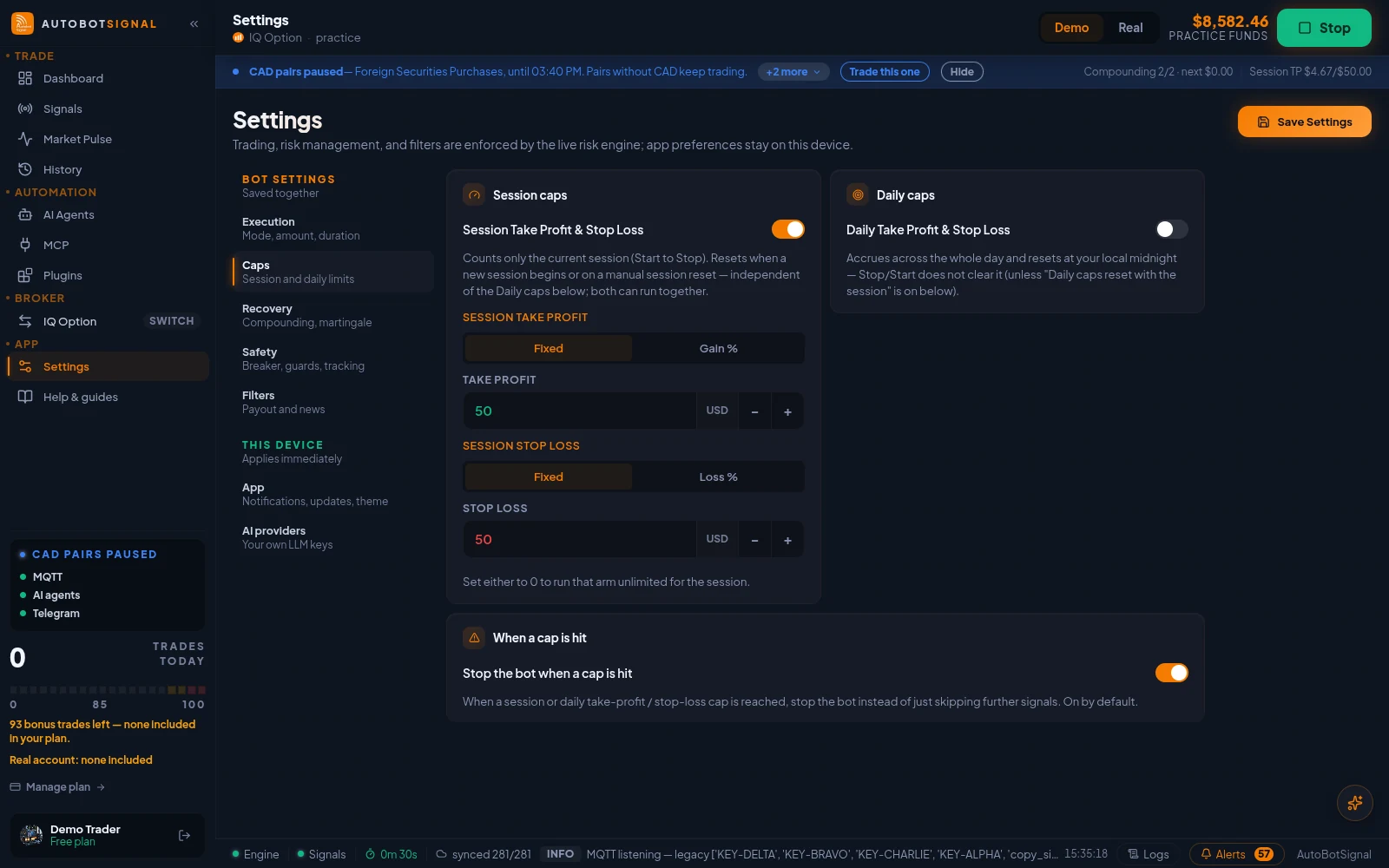
Settings → Caps: session take-profit and stop-loss, daily caps, and whether the bot stops when a cap is hit. - 5
Arm a session on demo first
Run the whole flow on your broker's demo account until it behaves the way you expect. Nothing about the setup changes when you switch to live except the money.
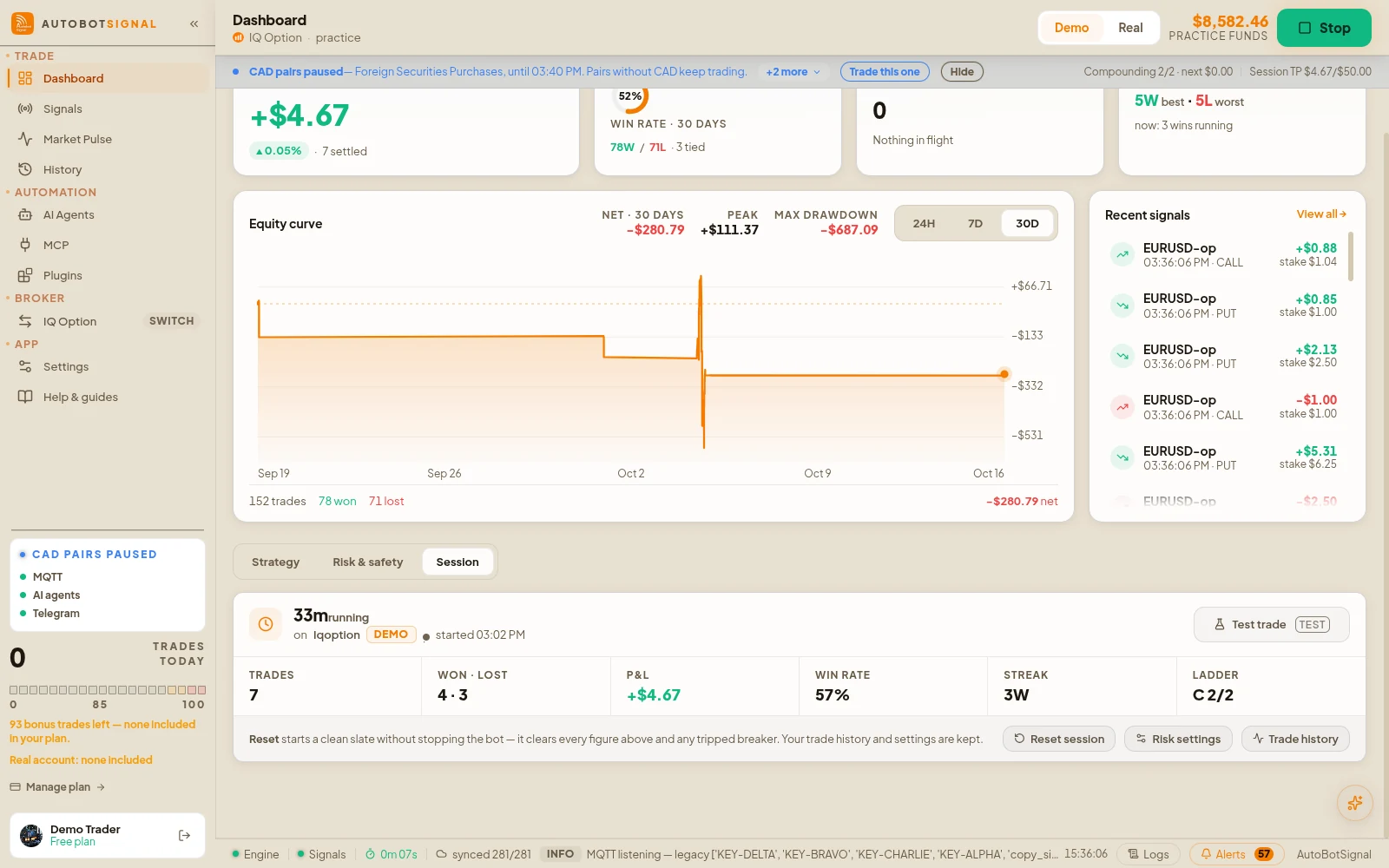
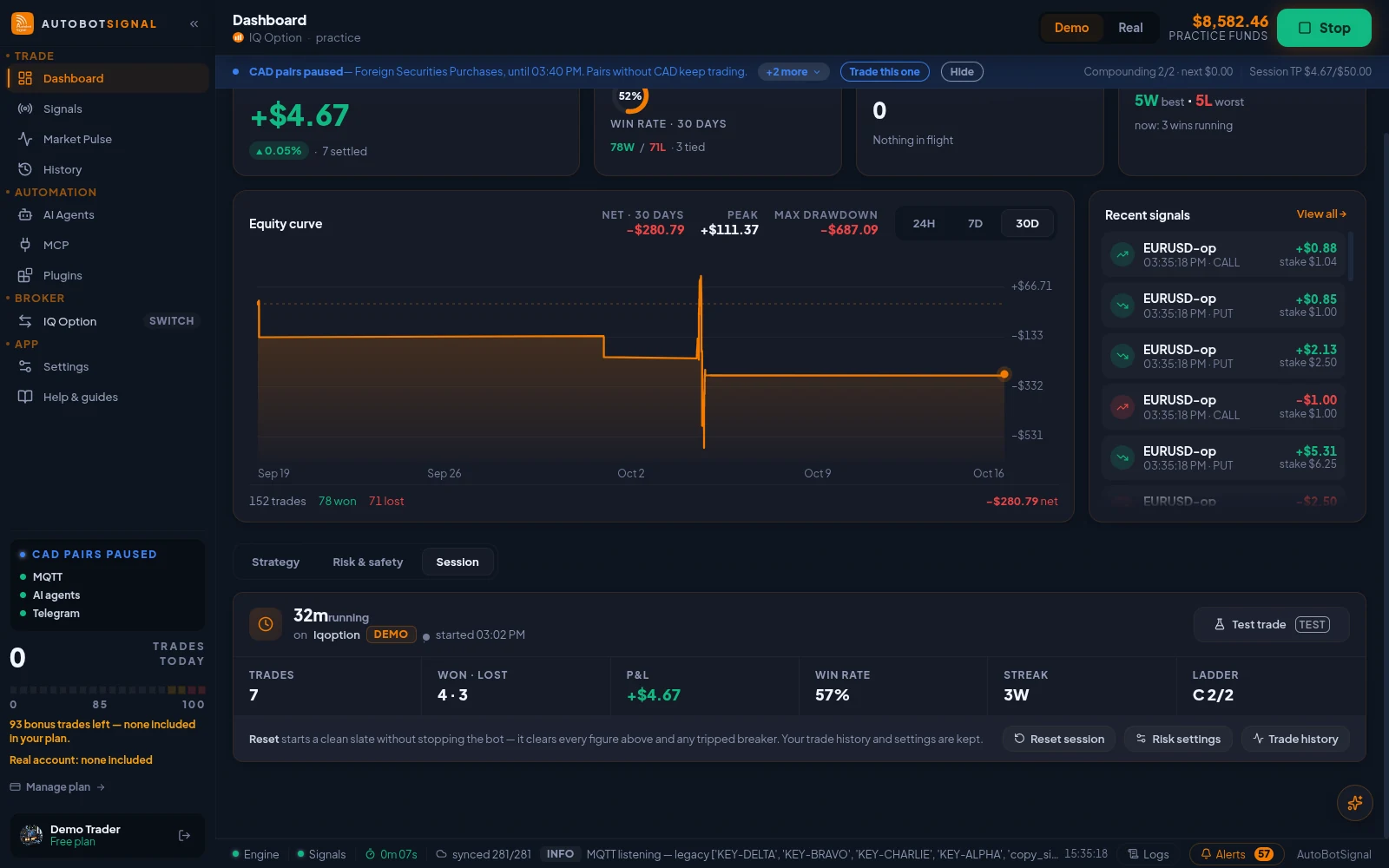
Dashboard → Session: this run's trades, P&L, win rate and ladder step, with Test trade and Reset session.
Phones, computers and what runs where
The single most common misunderstanding, so it is first.
Only with Deriv. AutobotSignal for Deriv is on Google Play and runs entirely on an Android phone with no computer involved. For Quotex, Pocket Option, IQ Option, Olymp Trade and Expert Option you need a Windows, macOS or Linux computer, because the broker session is created in a real browser on your own machine. There is no way around that today.
Brokers
Nothing is locked in, and your broker account does not have to use the same email as your AutobotSignal account — the two are unrelated. Open the Brokers page on the website, link the broker you actually want, then sign in to it from the desktop app. You can connect a different broker at any time.
What AutobotSignal does — and does not do
Worth reading before you set anything up, because it saves the most disappointment.
No. We do not sell signals and we do not tell you what to trade. AutobotSignal is automation: it takes signals you already have and places them as trades on your broker under limits you set. Be careful of anyone promising 'accurate' or guaranteed signals.
Account, licence and billing
The Plans page shows the current prices and daily trade allowances for every tier — it reads them live, so it is always the right answer. Every paid plan starts with a 7-day free trial, so you can run the bot properly before paying anything. Free costs nothing for ever and keeps your account, your broker connections and your settings, but it does not include any trades — it is there to get set up on, not to trade on. Yearly billing costs less on every plan, and prices are in US dollars. You can change plan at any time from Plans: an upgrade or a switch of billing cycle takes effect immediately and Stripe prorates the difference, while a downgrade is scheduled and takes effect at the end of the period you have already paid for.
When something goes wrong
The failures that actually reach support, with the fix that resolves them.
My broker signs in with Google, not an email and password
- Why
- A misconception that the app needs broker credentials typed into it. It does not — it never asks for them.
- Fix
- Press Connect and sign in with Google, Facebook or Apple in the broker's own window that opens. The app picks up the session and closes the window. You do not need to create a password at your broker. Deriv skips the window entirely and uses an API token.
The captcha fails when I connect a broker
- Why
- Brokers show a captcha in the login window, and repeated attempts, a switching VPN or an unstable connection can make it loop.
- Fix
- Solve the captcha yourself in the window, keep the app up to date, and do not change VPN location between attempts — a route that keeps moving is what makes it loop. If your region blocks the broker, set up the app's built-in connection proxy on the connect screen instead of switching a VPN on and off. If the broker has rate-limited you, wait a few minutes and reconnect from Brokers.
My broker keeps disconnecting
- Why
- Broker sessions expire, and signing in to the same broker account somewhere else invalidates the one the app holds.
- Fix
- Keep the app running and avoid logging into that broker account in another browser while a session is armed. Reconnect from Brokers when prompted — the app also self-recovers an expired session on connect.
A signal arrived but no trade was placed
- Why
- A risk rule refused it, or the market was closed — this is the system working, not failing.
- Fix
- Open the trade journal. Every refusal is logged with the rule that caused it: daily cap reached, stop-loss hit, market closed, or a message the parser could not read. That line is usually the entire answer.
Copy trading
The Discover and Portfolio pages — but there is nobody to follow there yet. No providers have been approved, so the Discover list is empty today. We would rather say so than have you hunt for something that is not there.
Guides for every screen of the app
The same text as the app's own Help & guides panel, with screenshots of the current release.
Dashboard
Win rate, P&L, the equity curve, and the risk state the engine is enforcing right now.
Signals
Switch sources on, point your senders at the webhook, and watch every signal arrive with its reason.
Settings
Execution, caps, the ladders, the guards and the filters, enforced on every signal.
AI Agents
Describe a strategy in plain words; the agent trades it through the same risk engine.
Brokers
Connect the account you already have; the app holds the session and places the trades.
All guides
Every screen of the desktop app, explained.
Guides and getting a human
Yes — there is a YouTube tutorial playlist at https://www.youtube.com/playlist?list=PLpDOQhFY9s17PTEwKnq5OQdt3oHt1gBcc, also linked as 'Video Tutorials' in the site menu. It covers connecting each broker step by step, the MetaTrader bridge, and clearing remembered broker credentials. The videos were recorded on the previous version of the app, so the screens look different from today's, but the steps are the same. For the current app, the walk-through covers the full path from account to first session in writing with screenshots, each integration has its own page, and every page inside the app has a guide panel in the corner.
Start on a demo account. Automated trading can lose money and no win rate or profit is guaranteed — you are responsible for the rules you configure.
Still stuck?
Open the support chat on any page and leave your email, or message the team on Telegram. Every ticket is read by a person.