Desktop app guide
Brokers — how it works in the AutobotSignal desktop app
Connect the broker account you already have. This desktop app holds the live broker session and is what actually places your trades — a broker linked on the website alone does nothing. The bot trades strictly one broker at a time, and your license decides which brokers unlock and whether you can switch.
Brokers in the desktop app
Real screenshots of the current release on a practice account.
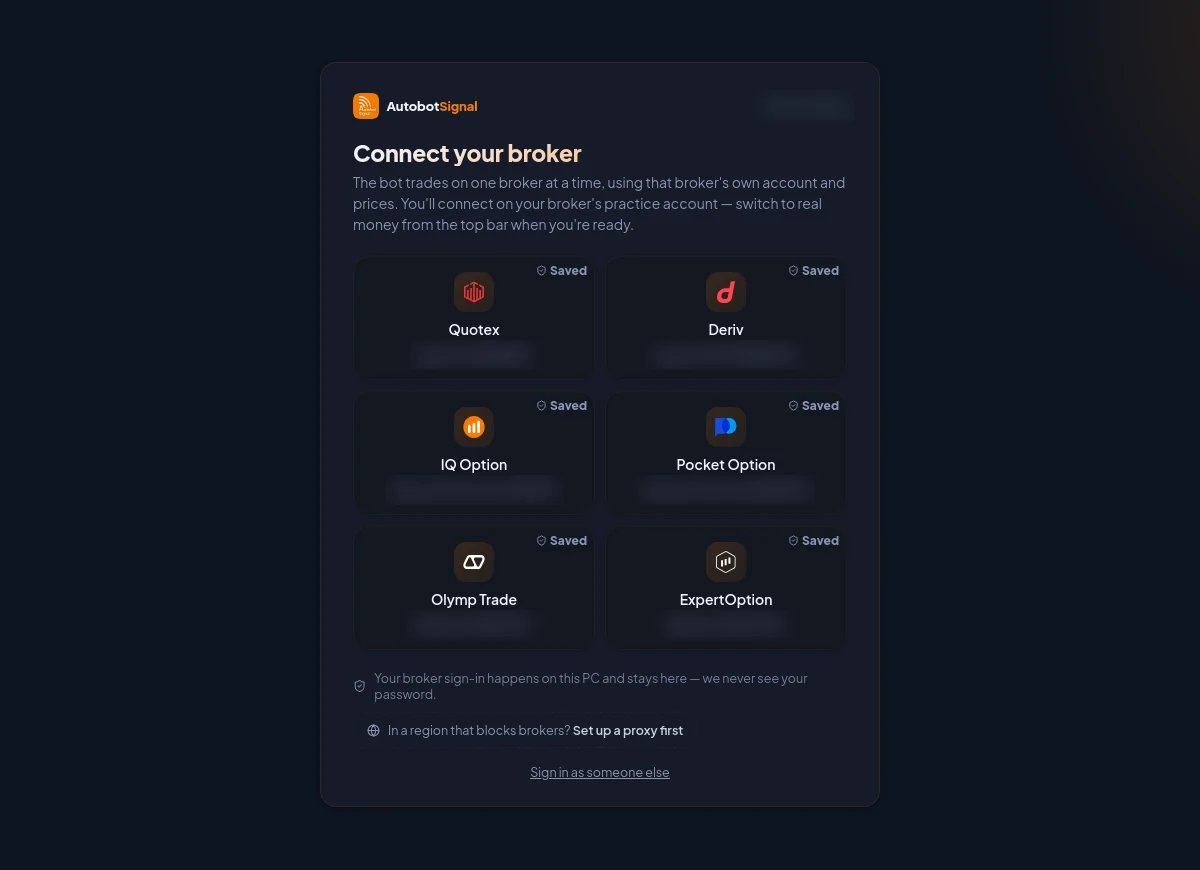
How Brokers works
- 1
Pick your broker and sign in
Deriv connects with an API token you create at home.deriv.com under Dashboard → Profile → API tokens, with the Trade scope. One token covers both your demo and real accounts — the app trades whichever mode you select. Every other broker opens a secure browser window and you sign in there — this app stores the resulting session, never your password.
- 2
Activate it against your license
Signed in, your license is the source of truth. A fixed plan locks to one broker permanently, a switchable plan allows a change after a cooldown, an unlimited plan lets you move freely. The banner at the top of this page states which one you are on.
- 3
Connect and trade
Being active on your license is not the same as being logged in. Connect & trade establishes the live session — only then does the card read Connected and show your real balance. That is the state the engine needs to place an order.
- 4
Change brokers only when the bot is quiet
Stop the bot so no new signals are taken, and let any open trades settle. The app refuses broker changes while it is running or while trades are still in flight, and tells you which of the two is blocking.
- 5
Update, clear, or switch credentials
Deriv: open Accounts on the broker card to manage saved API keys — Add & connect saves a new key and makes it the default, the trash icon deletes a saved key, and deleting them all clears Deriv from this device. Tokens from before Deriv's platform migration are in a retired format and get removed automatically — replace them with a pat_… token from home.deriv.com → Dashboard → Profile → API tokens (Trade scope). Browser brokers: Different account clears the stored session and opens a fresh sign-in, while a plain disconnect keeps the session for next time.
Good to know
What the app does, and does not do, here
- With no broker connected there is nothing to trade on, so the app shows the broker gate instead of the dashboard. To practise without risking money, connect on your broker’s PRACTICE account: the orders are real orders against the broker’s own demo funds, and the top bar always names the account you are on.
- Saved Deriv API keys stay on this device until you delete them from the Accounts picker. On a browser broker, Different account clears the cached session and forces a fresh sign-in.
- Switching broker, or demo to real, re-baselines your live risk state — ladders, streaks and session P&L — if "Reset when the broker or account changes" is on in Settings.
- Brokers greyed out as "Not on your plan" are a license limit, not a connection failure. Your plan controls the list.
- If your region blocks a broker, set up a connection proxy from the connect screen before signing in — every broker’s sign-in routes through it, and live data too for PocketOption and Quotex. It can only be set before a broker is connected.
Start on a demo account. Automated trading can lose money and no win rate or profit is guaranteed — you are responsible for the rules you configure.
Run it on demo first
Install the desktop app, connect a practice account and see every rule on this page enforced before any real money is involved.