Desktop app guide
Signals — how it works in the AutobotSignal desktop app
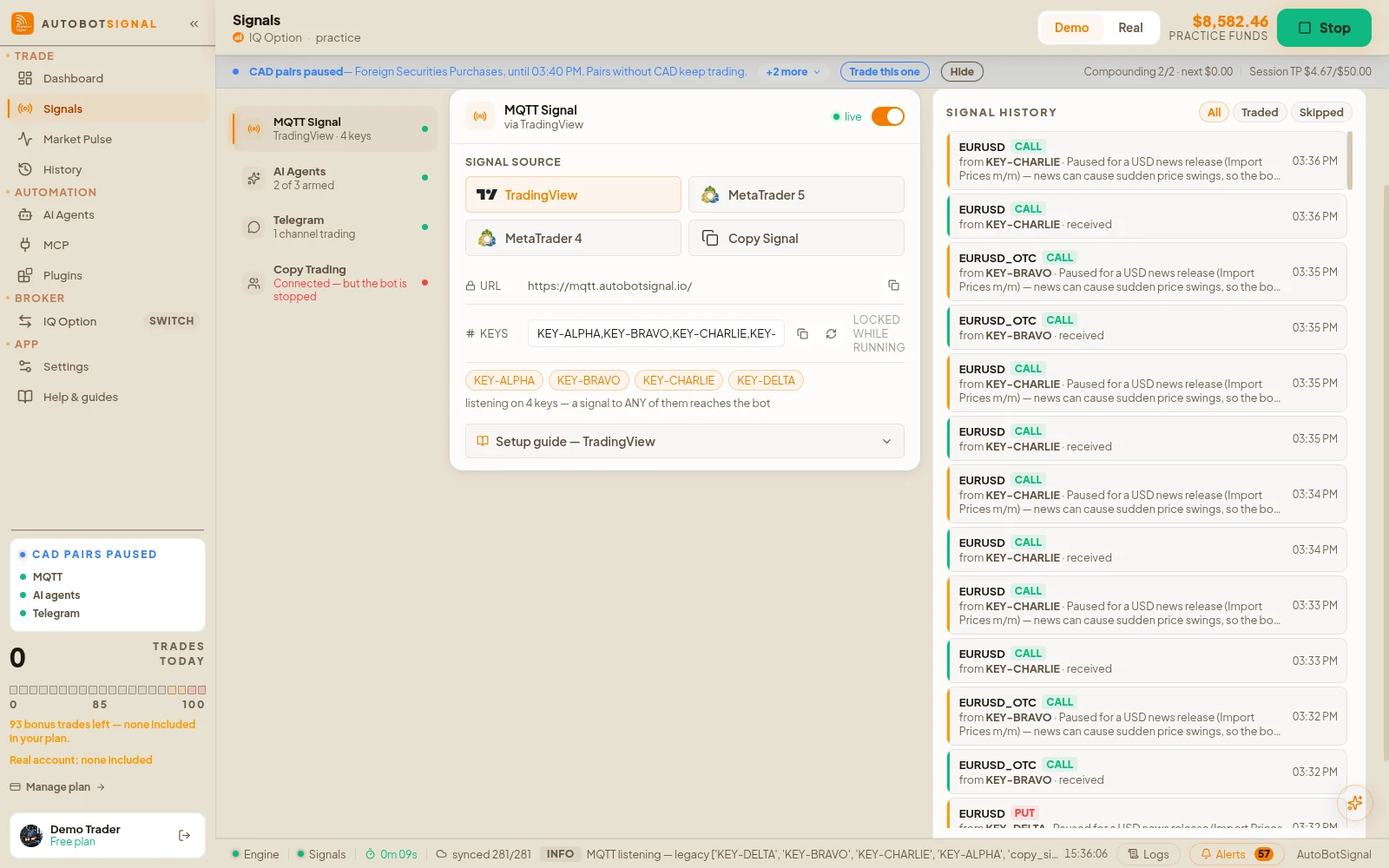
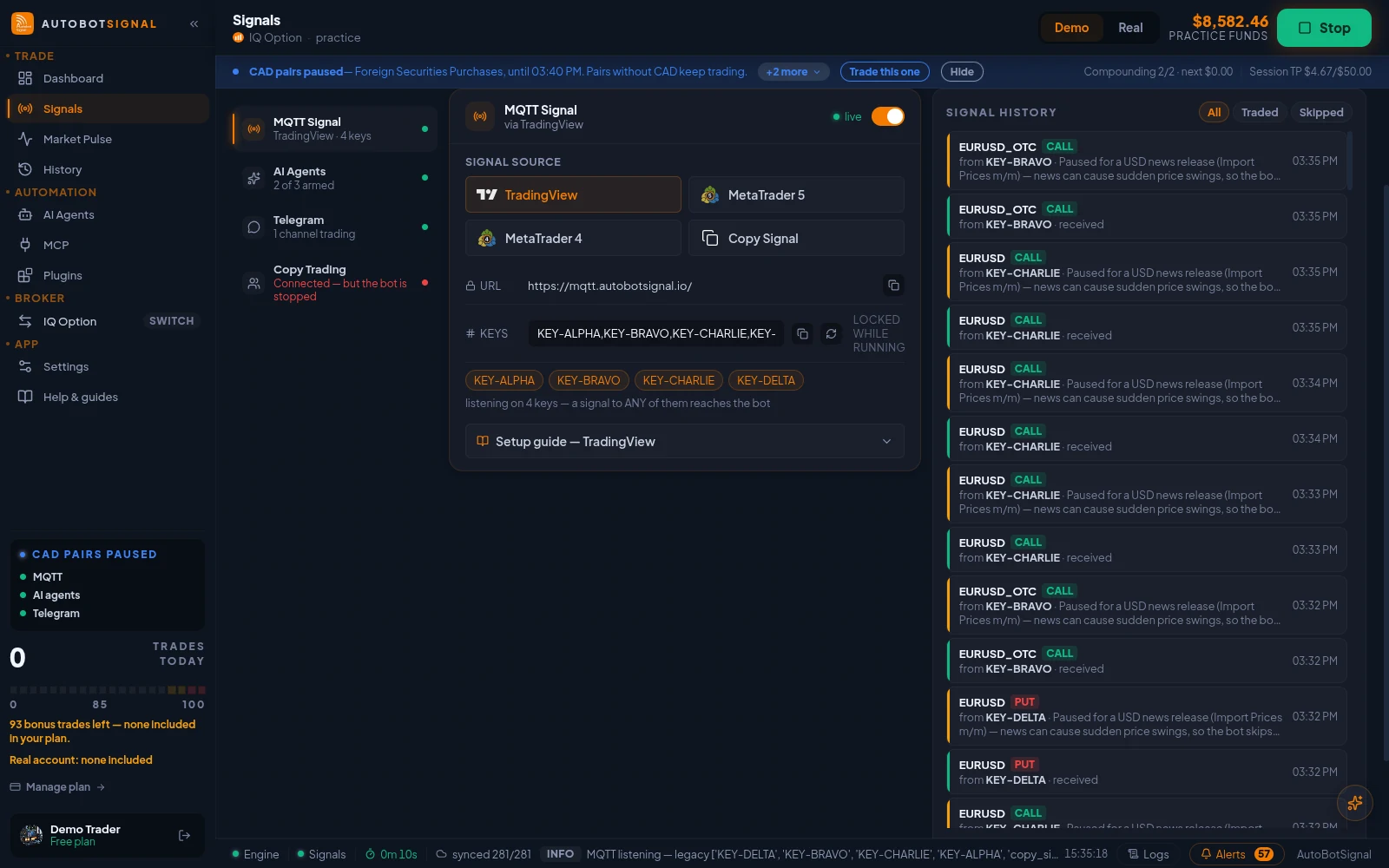
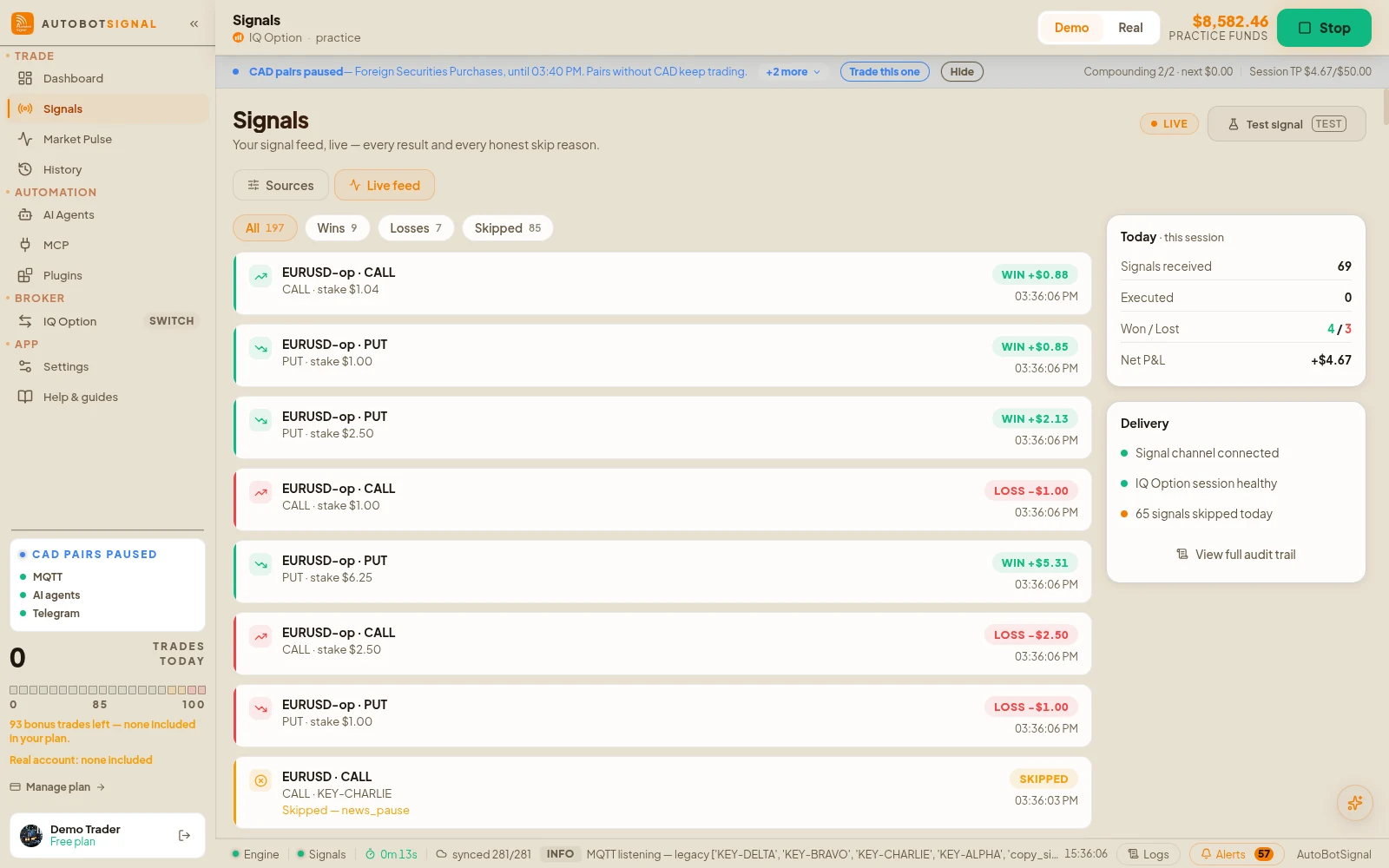
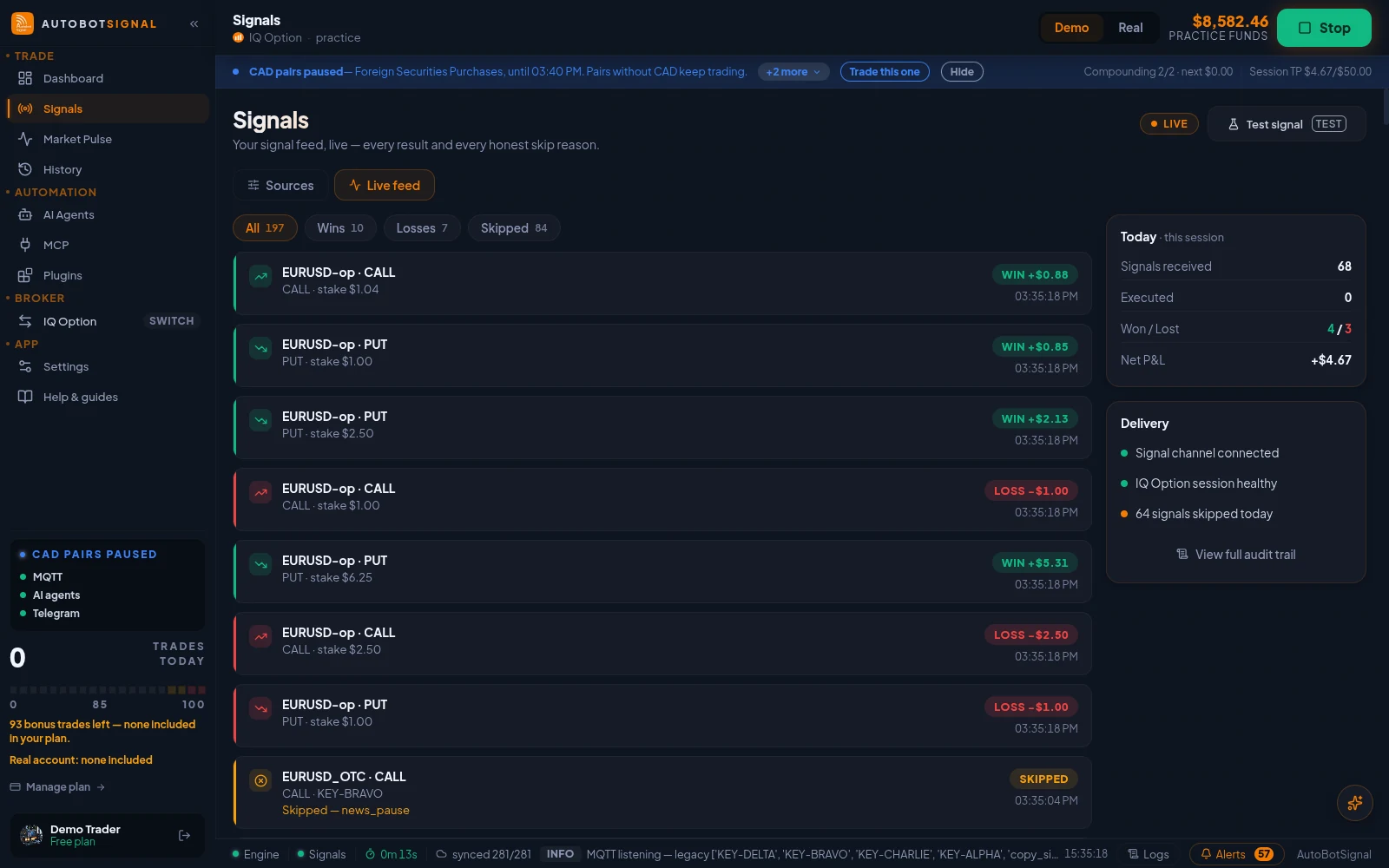
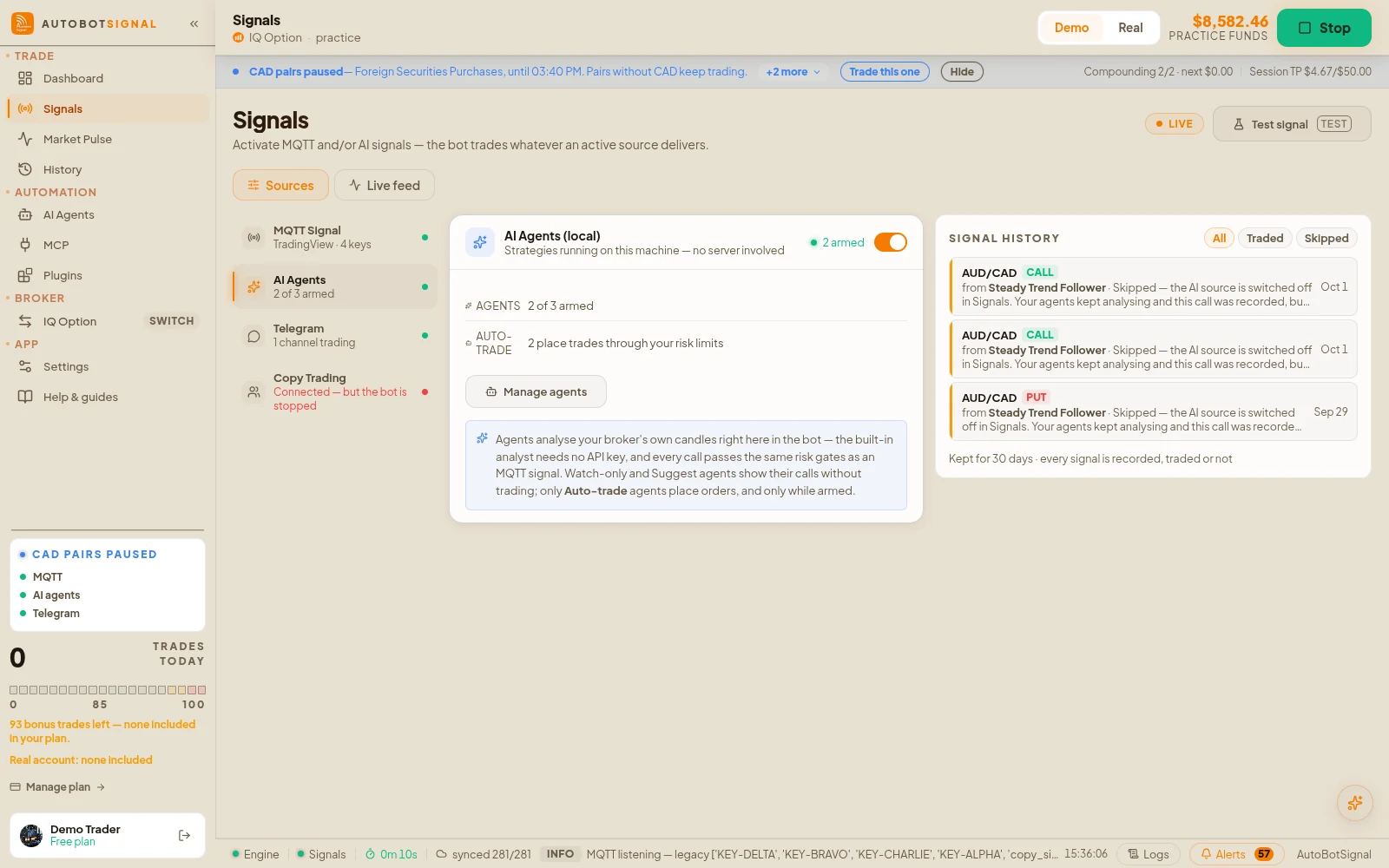
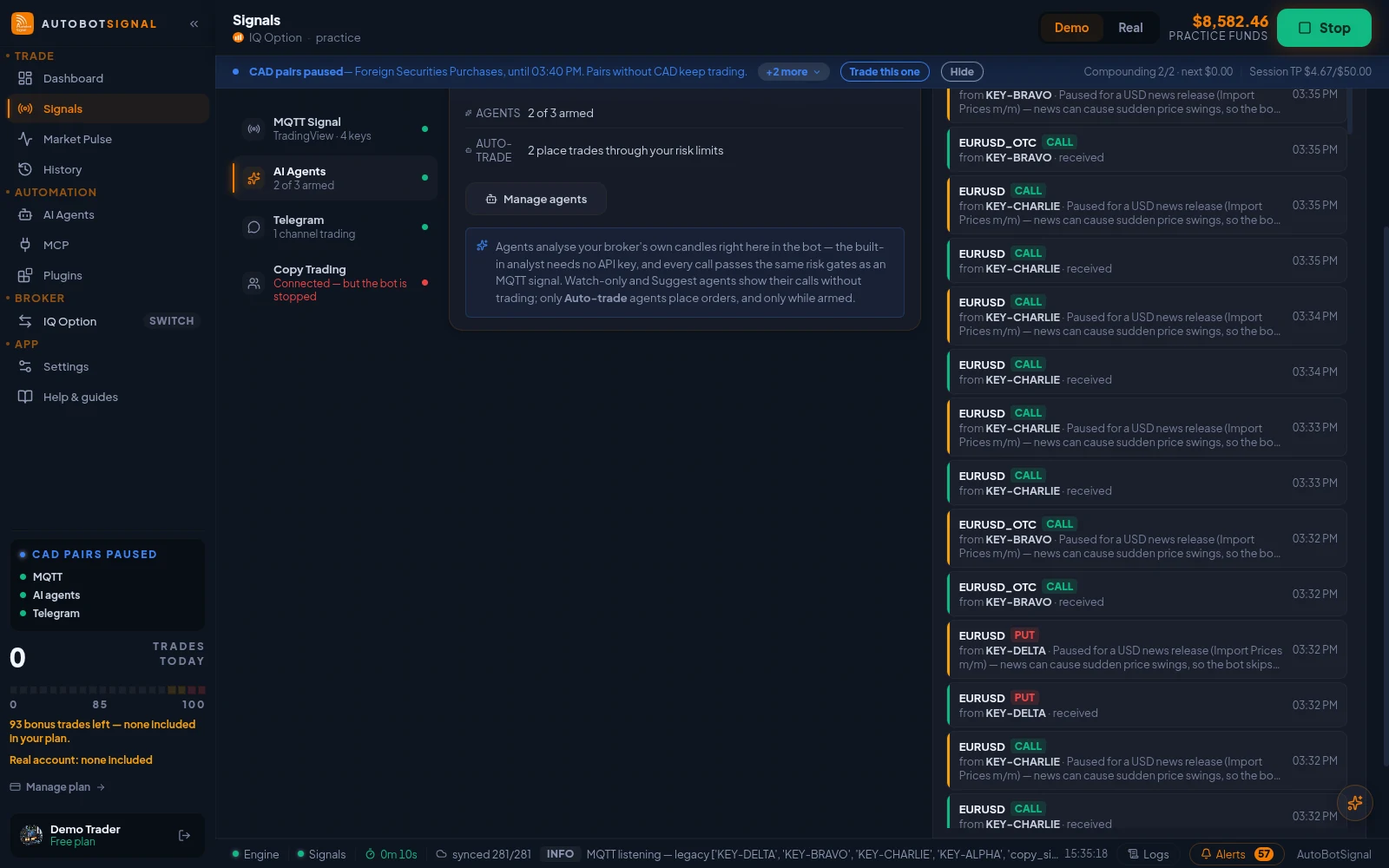
Two views. Live feed is every signal this bot received in this session — executed, skipped or failed, each with an honest reason. Sources is where you switch the delivery channels on: MQTT for TradingView, MetaTrader and copy signals, and AI signals from your agents. Switching a source on does not by itself place trades — the bot also has to be started, with a broker session up.
Signals in the desktop app
Real screenshots of the current release on a practice account.
How Signals works
- 1
Switch a source on
In Sources, turn on MQTT Signal and/or AI Signal. Both can run at the same time and the bot trades whatever an active source delivers.
- 2
Point your sender at the webhook
For MQTT, copy the URL and your signal key into the TradingView alert webhook, or into the MetaTrader connector EA inputs. The key field accepts several keys separated by commas — the bot subscribes to every one of them, and a signal to any key gets through.
- 3
Turn on AI reception for agent signals
Agents are created and tuned on the AI Agents page in this app — they run locally, on this machine. Their signals only reach the trade path while AI Signal is on here. That toggle is a server-side account flag, not a device setting, so it follows you to any bot signed in to this account.
- 4
Connect your Telegram account
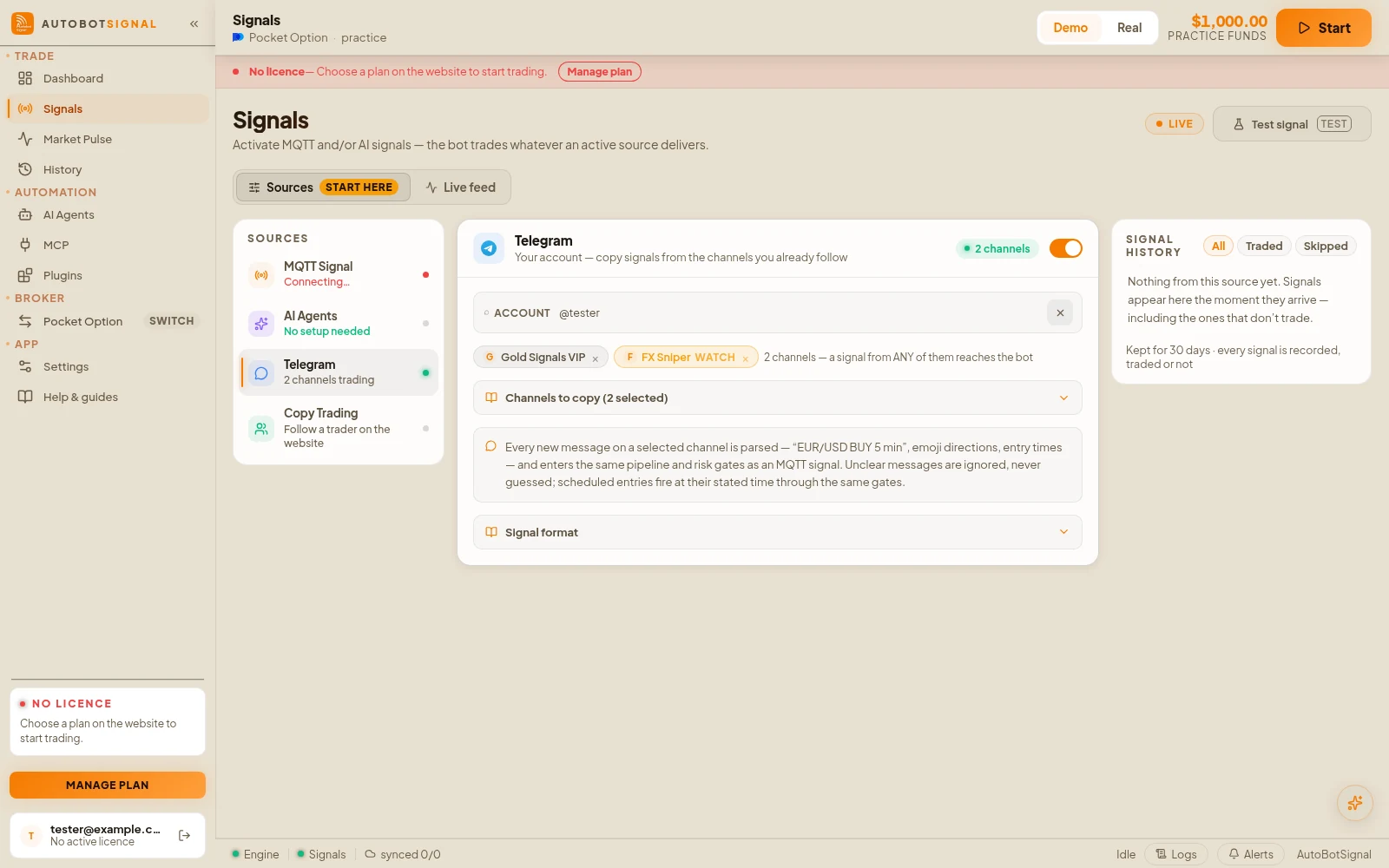
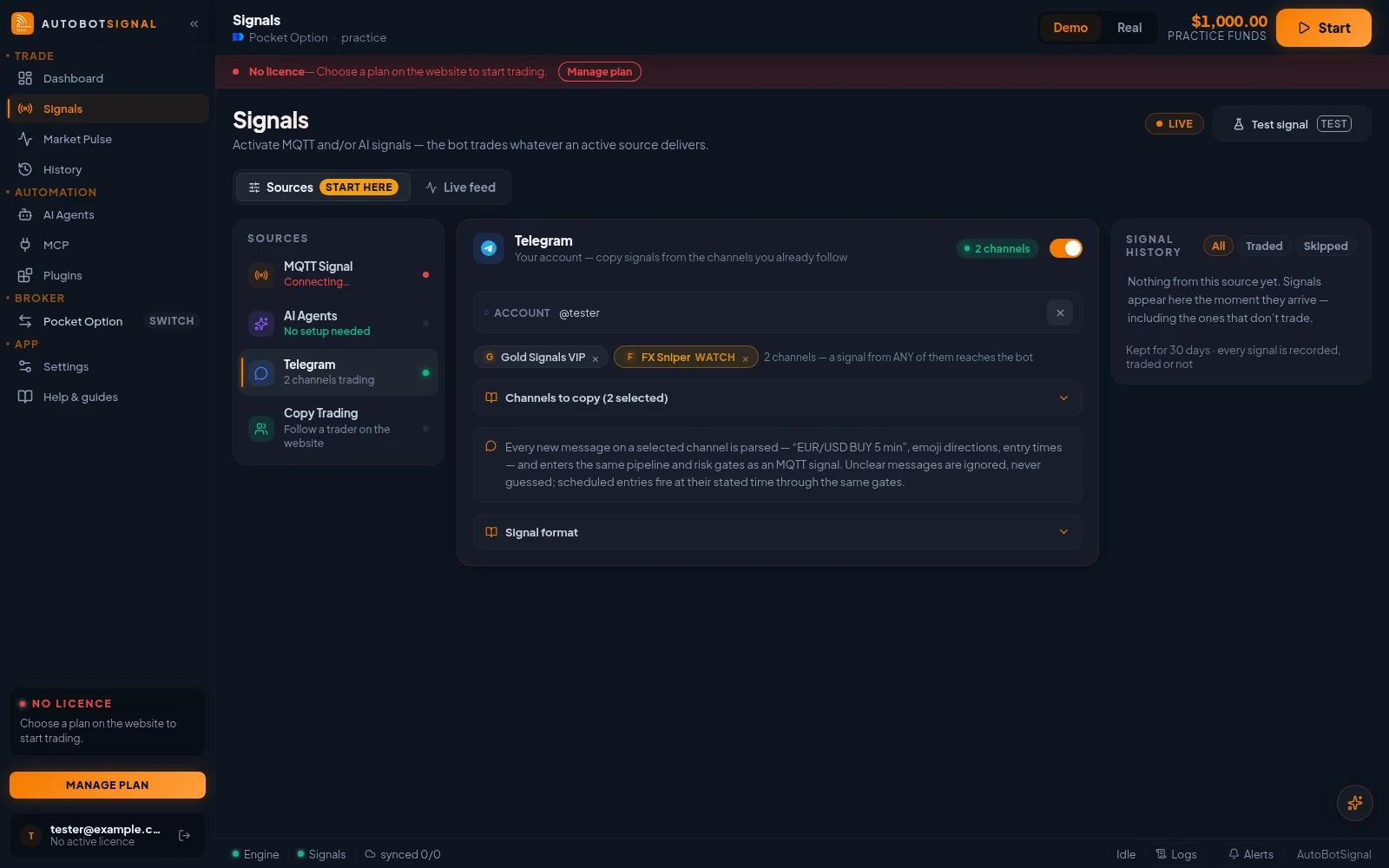
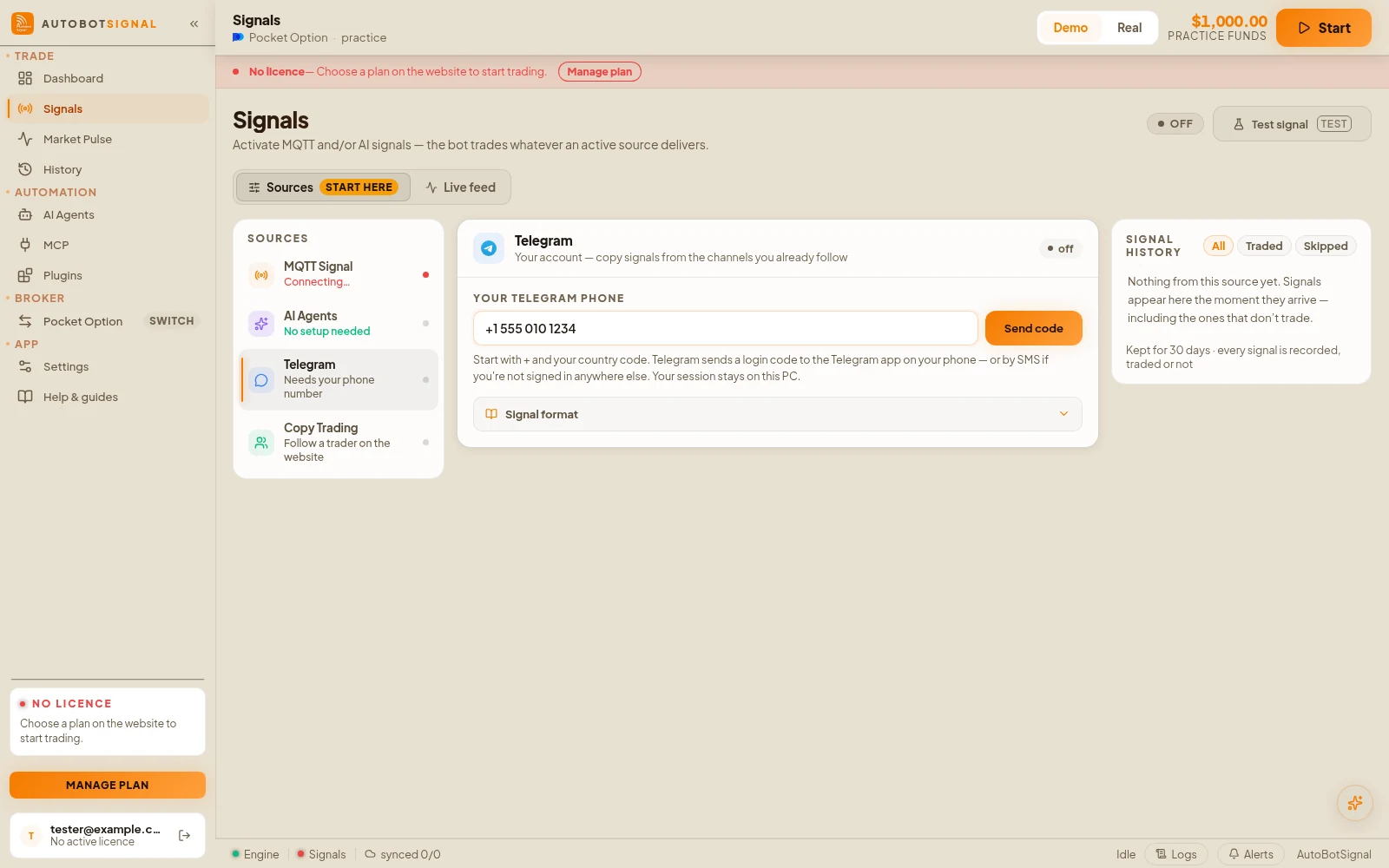
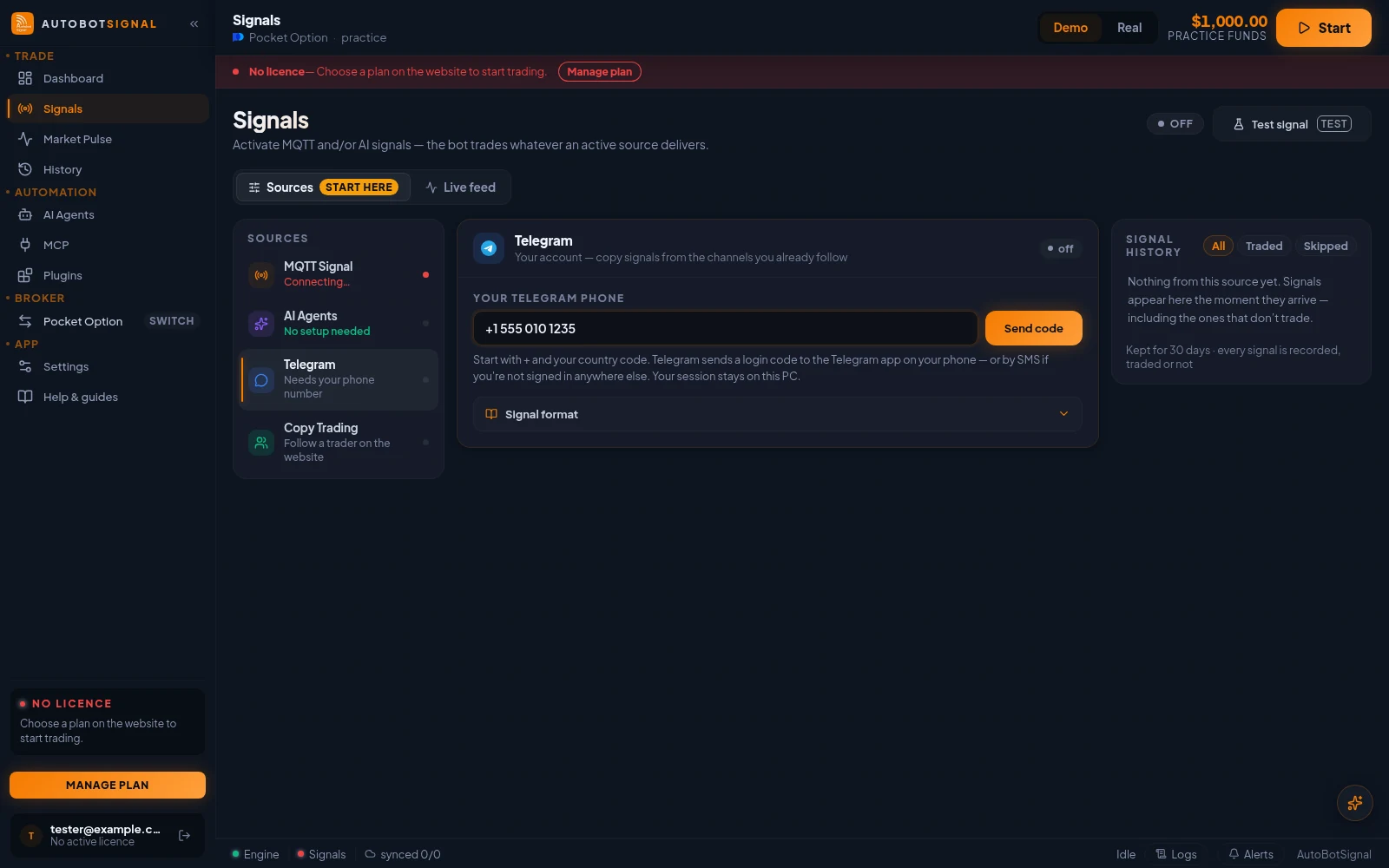
In Sources, pick Telegram and enter your phone number with its country code, like +254 712 345 678. Telegram sends a login code the same way it does for any Telegram app: to the Telegram app on your phone or any other device where you are already signed in — by SMS only if you are signed in nowhere else. The session is stored on this PC only; nothing is ever posted on your behalf.
- 5
Enter the code Telegram sent
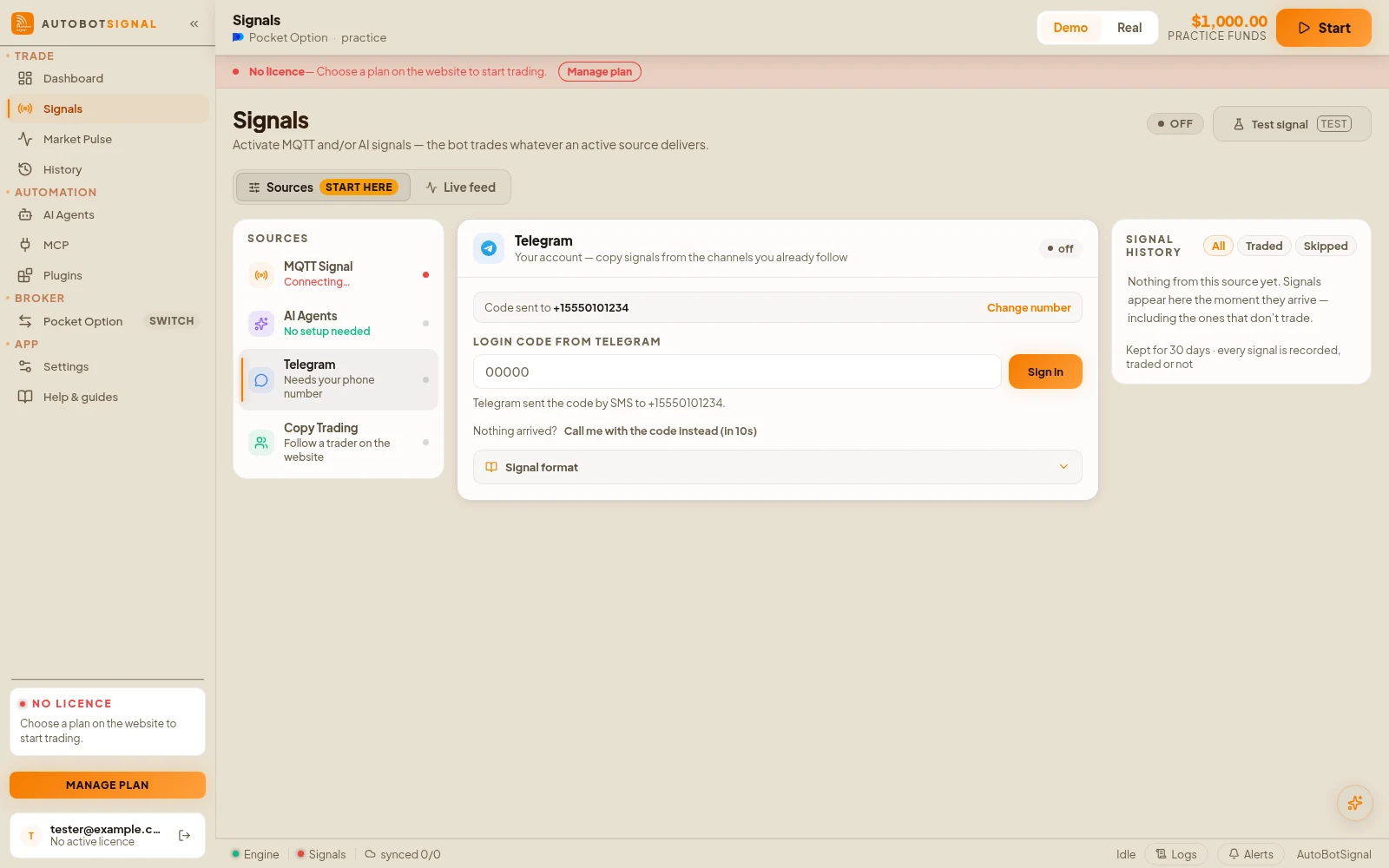
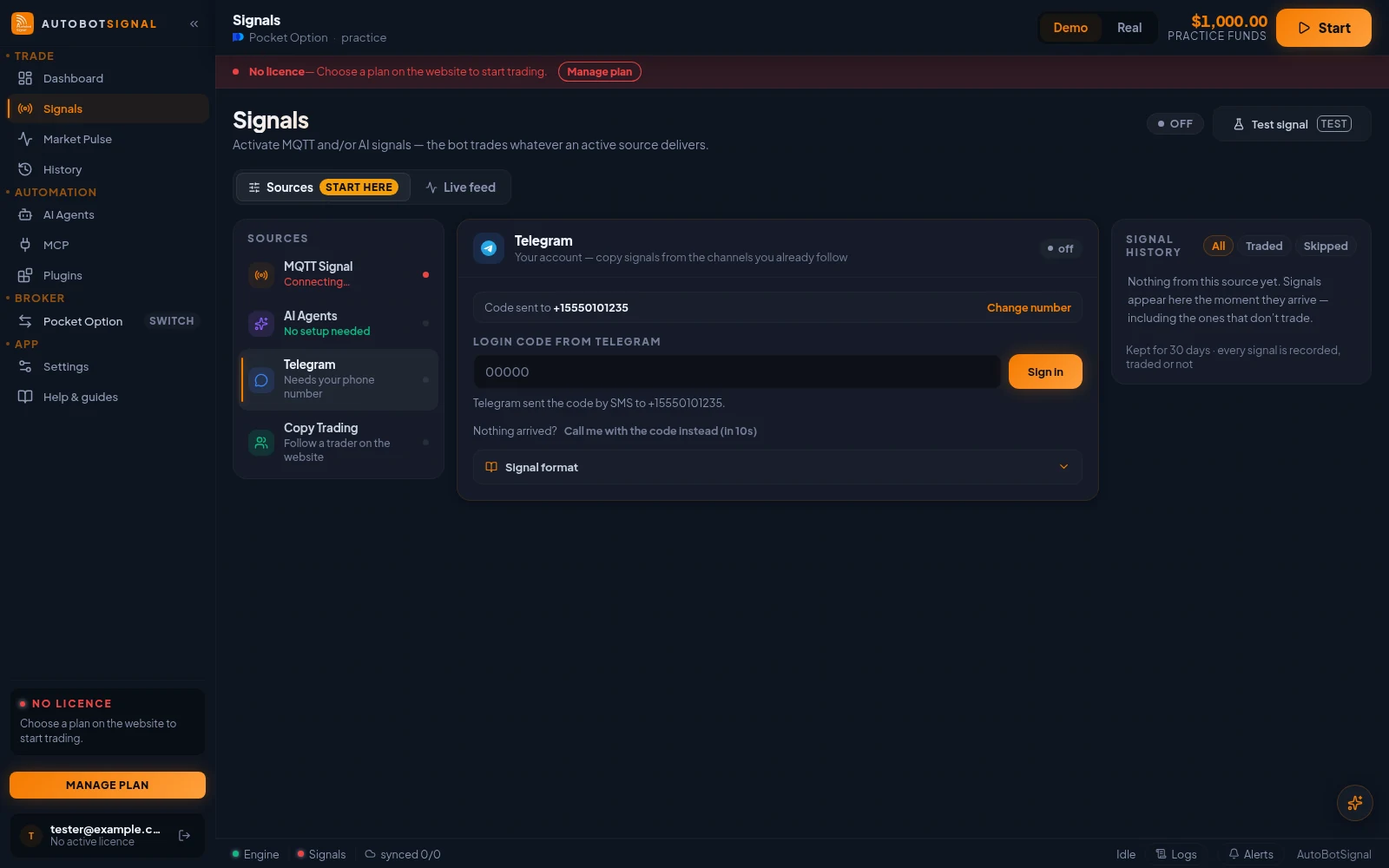
The card says where the code went. If nothing arrives, Nothing arrived? offers Telegram's next channel, usually SMS, once Telegram allows it; Change number takes you back if you typed the wrong one. An account with two-step verification is asked for its Telegram password next, which goes straight to Telegram and is never stored. Every refusal is a plain sentence — a wrong code, an expired code, too many attempts — with what to do next.
- 6
Pick the channels to copy
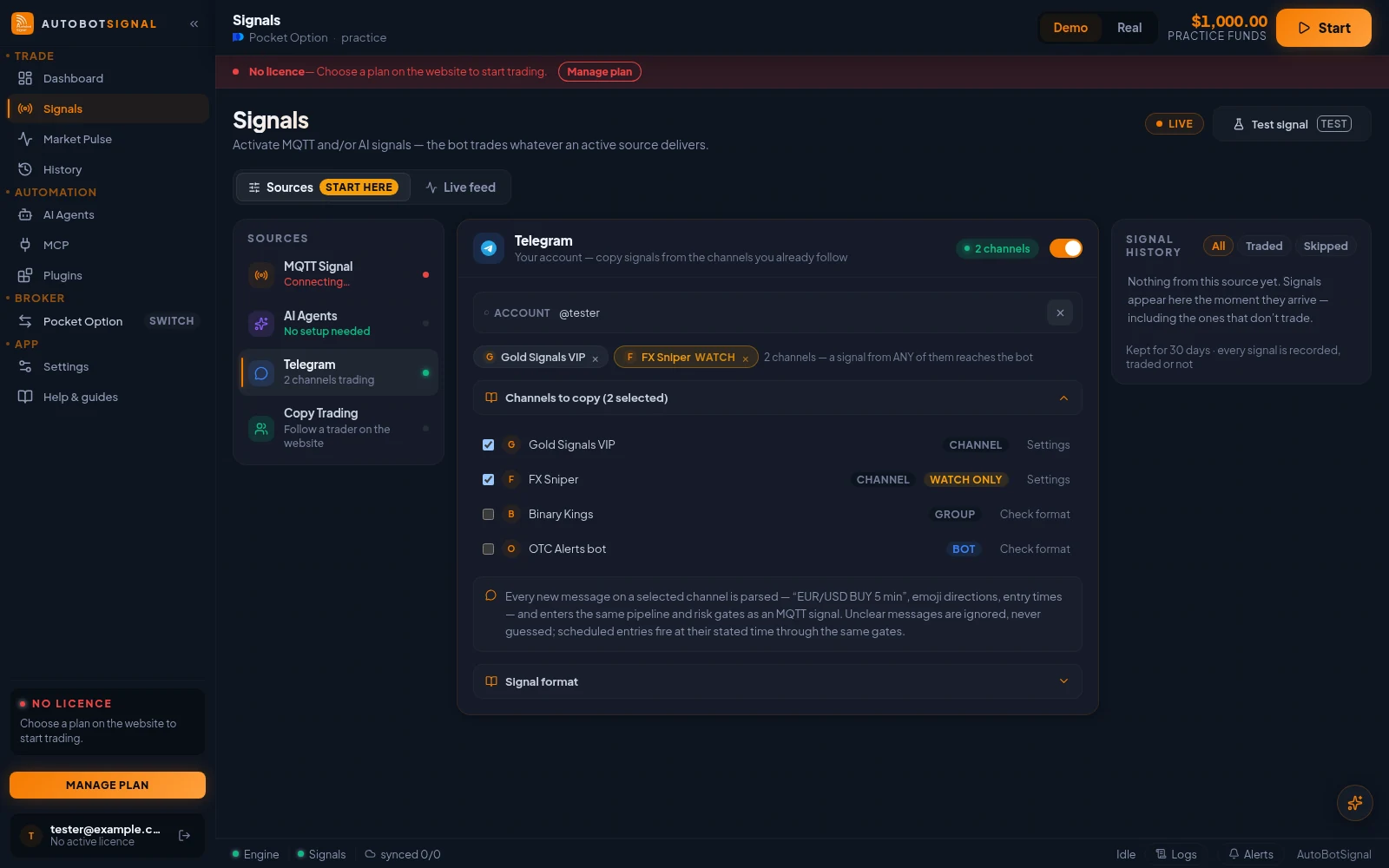
Signed in, open Channels to copy: every channel, group and bot your account follows is listed. Check format reads a channel's recent posts before you commit to it and says how many parsed as signals. Tick the ones to copy, set each one's timezone and expiry if the channel states them, mark a new channel Watch only to see its calls without trading them, then Save. The chips above the picker show what the bot is copying right now.
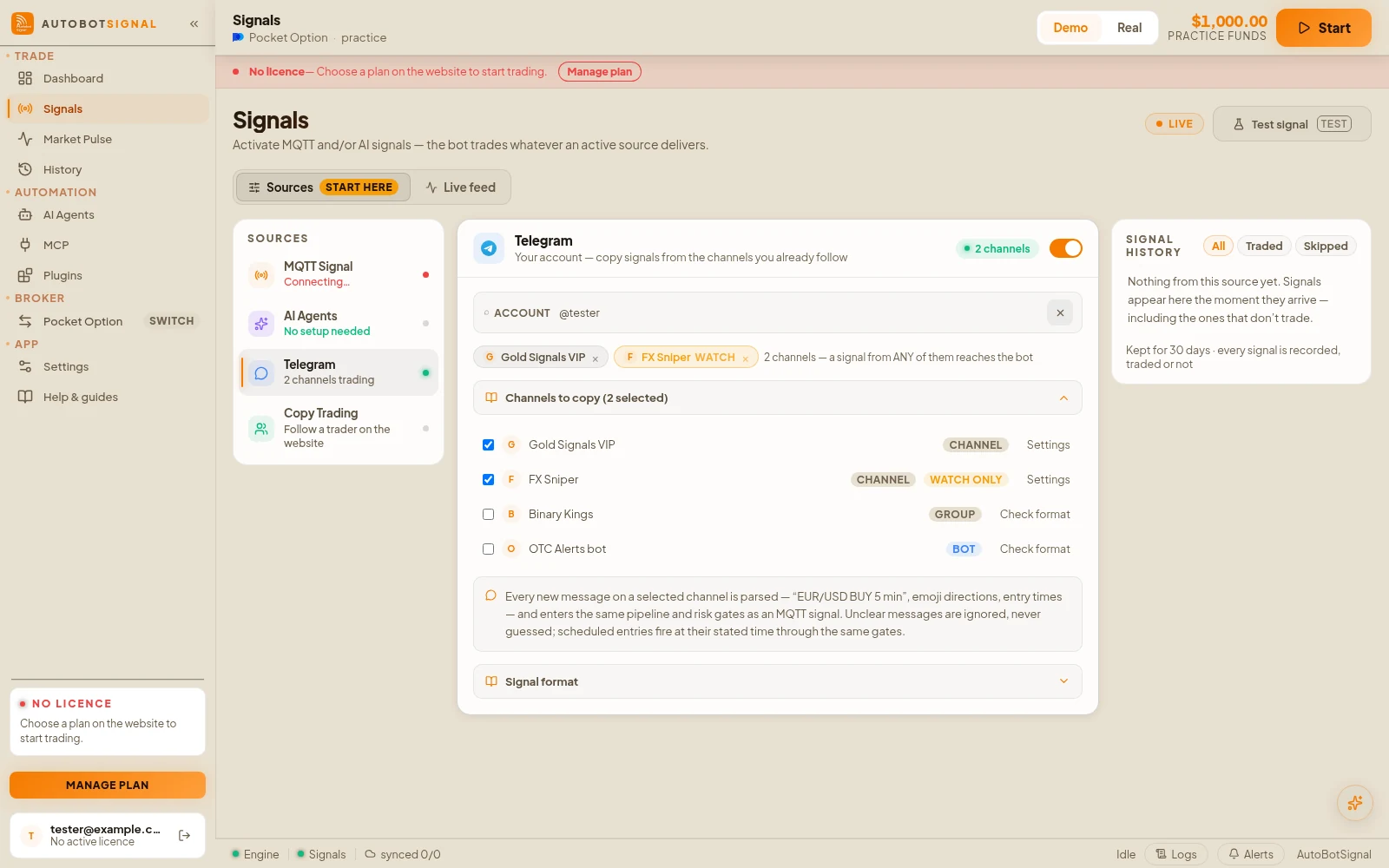
- 7
Press Start, then watch the feed
A signal that arrives while the bot is stopped is recorded but not traded. Skips show the reason inline — closed market, payout filter, news pause, session or daily cap, circuit breaker, concurrency cap.
Good to know
What the app does, and does not do, here
- The Telegram card's Signal format section shows the message shapes the bot understands, with an example for each. Send the online reference to a signal provider before you follow their channel.
- Two Telegram channels posting the same pair and direction within ten seconds trade once — channels repost each other. Separate posts minutes apart are separate signals and trade separately.
- Rotating the signal key kills the old key immediately. Any TradingView alert or MetaTrader EA still sending on it stops working until you paste the new key in there too.
- The key cannot be edited or rotated while the bot is running — stop it first.
- Test signal is a demo-account tool: it injects one sample signal on a pair the broker currently has open, and it runs through your real settings, so a skip in the feed is telling you something true.
- AI signals are relayed on a private channel, so they arrive whichever MQTT transport (New bridge or Legacy IP) your public key is on.
Start on a demo account. Automated trading can lose money and no win rate or profit is guaranteed — you are responsible for the rules you configure.
Run it on demo first
Install the desktop app, connect a practice account and see every rule on this page enforced before any real money is involved.