Getting started
How to set up your trading bot — full walk-through
Everything from account to first automated session, in order. Budget about fifteen minutes and start on a demo account.
From zero to your first session
- 1
Create your AutobotSignal account
Sign up for free. Trading needs a plan, and every paid plan starts with a 7-day free trial, so you can test the whole flow before paying anything.
- 2
Install the desktop app
Automation runs on the desktop app for Windows, macOS and Linux. Download the current release and sign in with the account you just created.
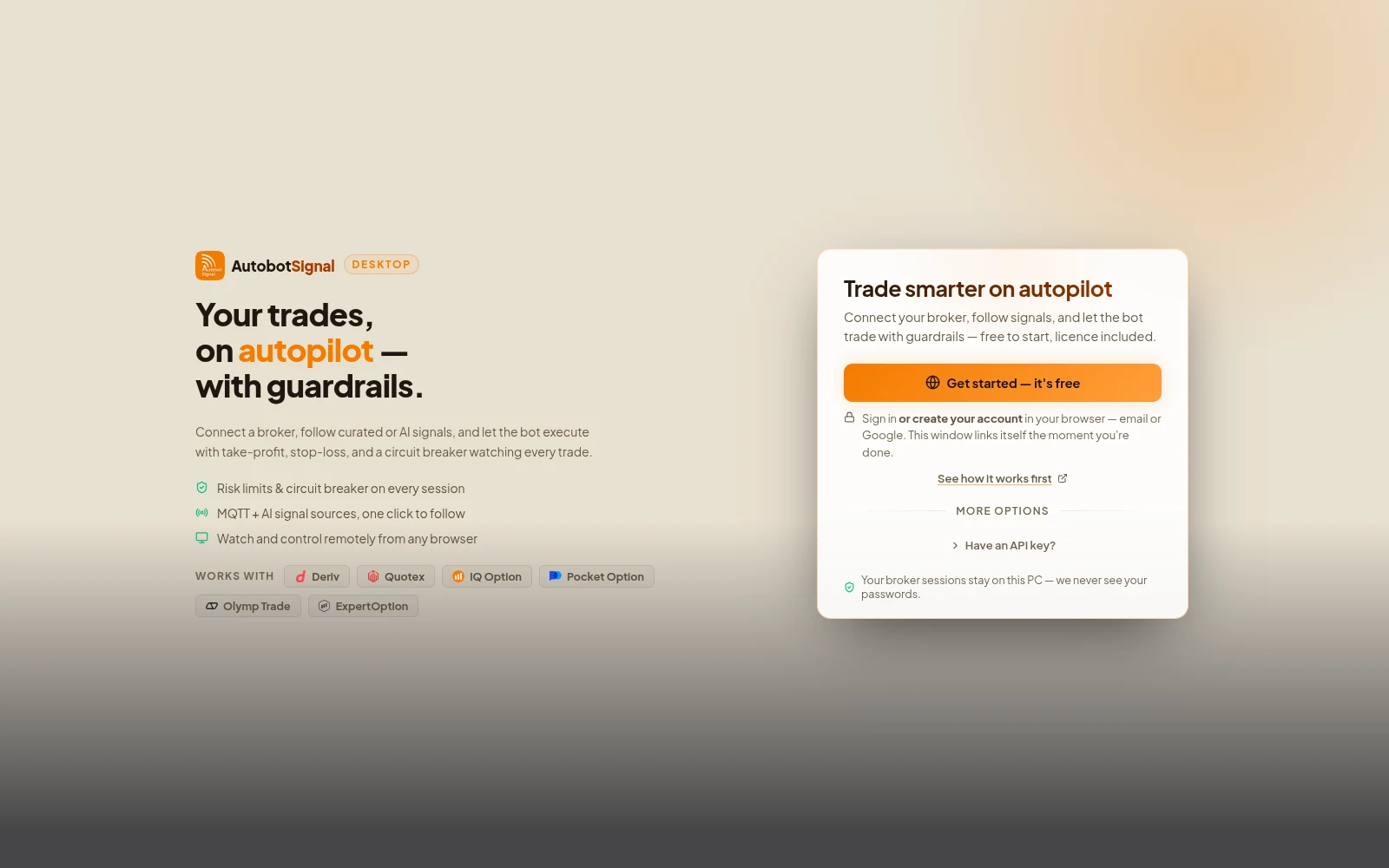
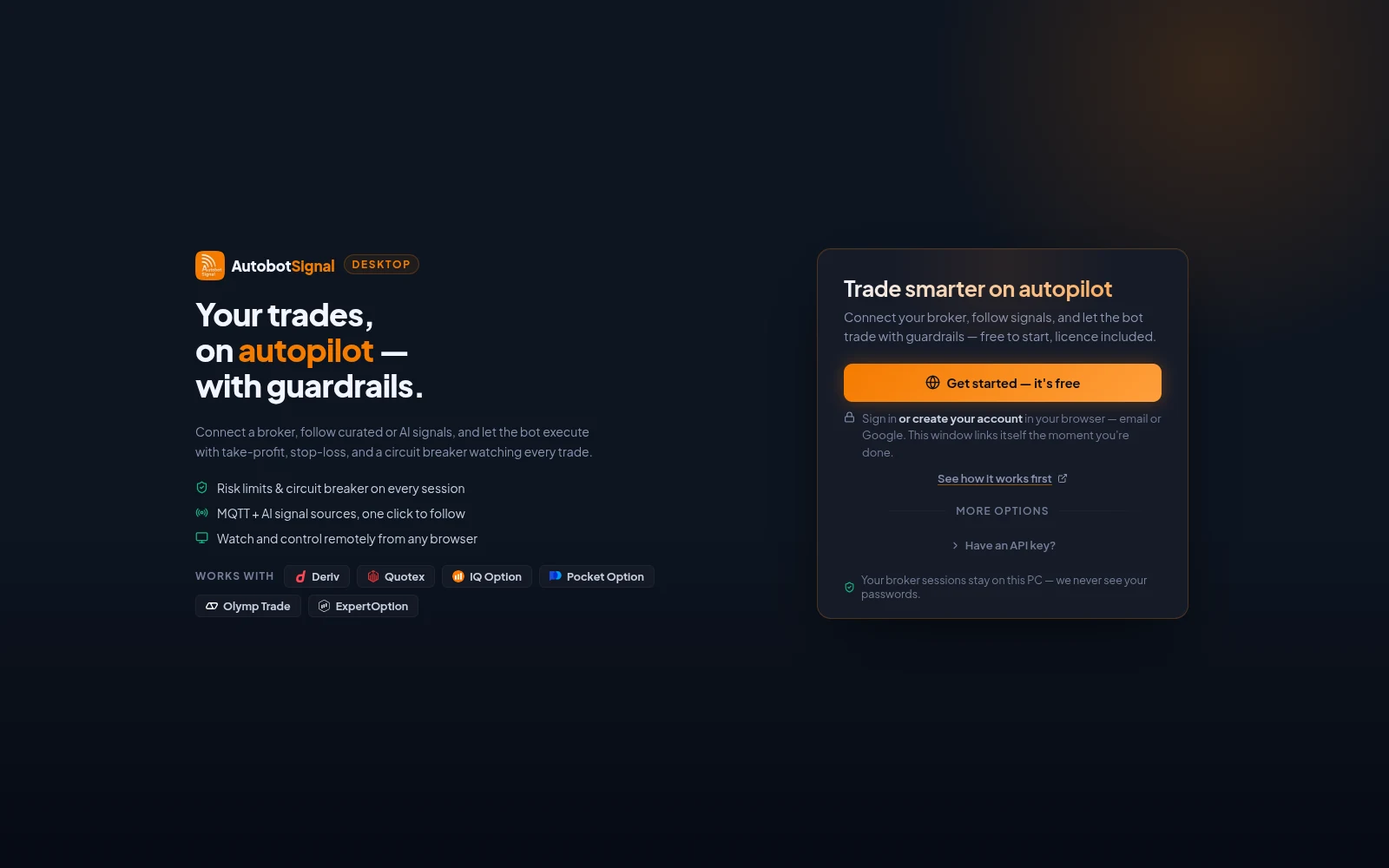
The desktop app after installing: Get started creates or signs in to your account in the browser, and the window links itself when you are done. - 3
Connect a broker
Open Brokers and connect an account. Deriv uses an API token you paste in. For the other five a browser window opens and you sign in to your broker the way you normally do — including with Google or another social login.
- Choose demo for your first session
- The sign-in window only appears on your first connect, or if the session expires
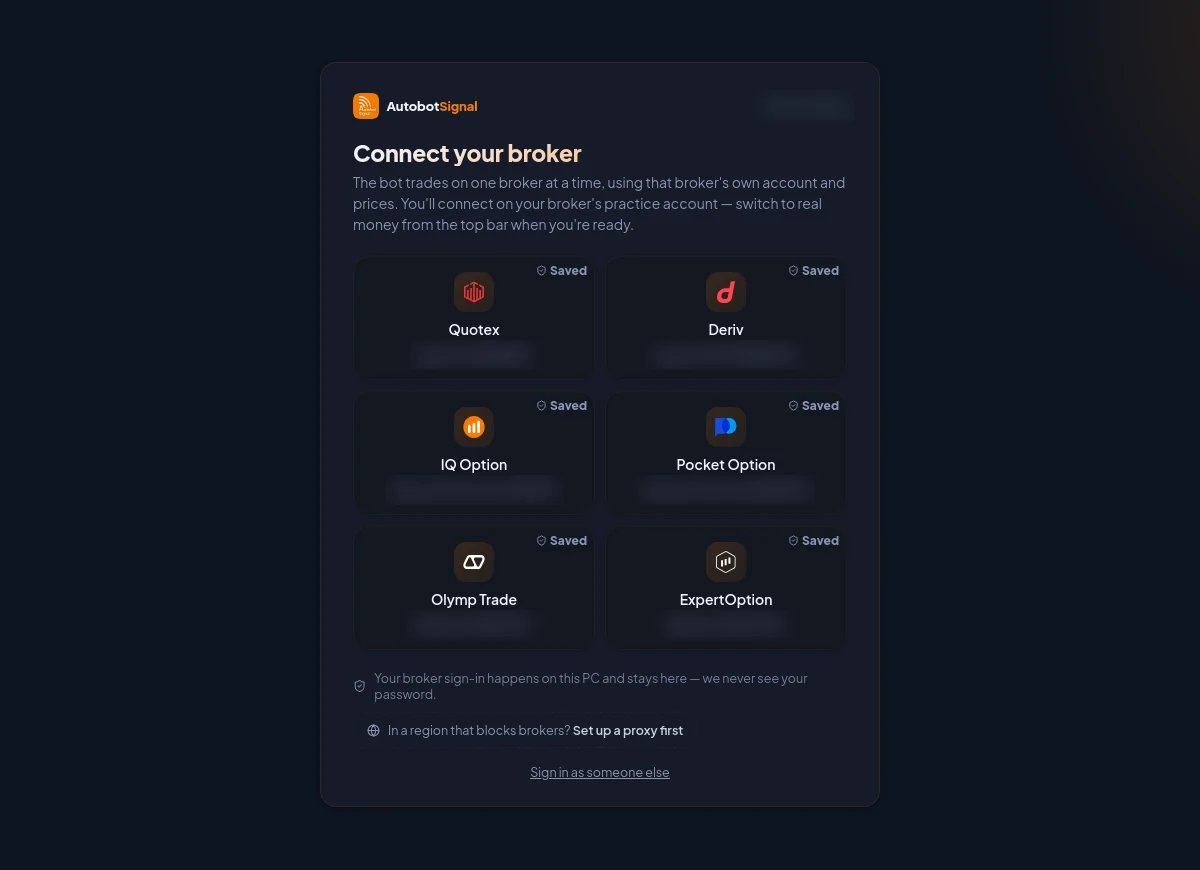
The Brokers screen before anything is connected: one card per broker. A card marked Saved resumes a previous sign-in; otherwise the broker's own sign-in opens in a secure window on your PC. - 4
Choose a signal source
Pick one to start: an AI agent, a Telegram channel, a TradingView or MetaTrader alert, or a copy-trade signal key.
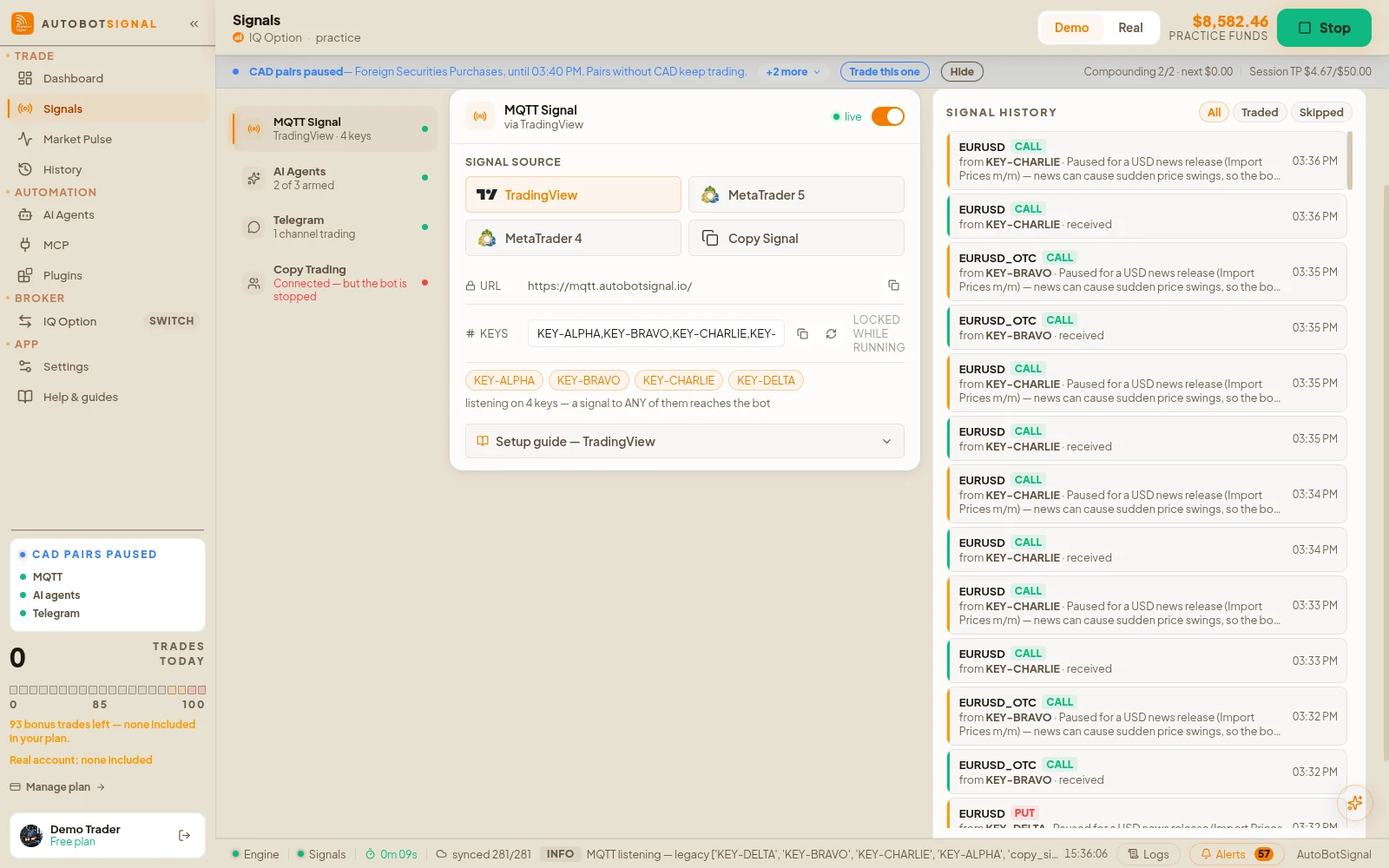
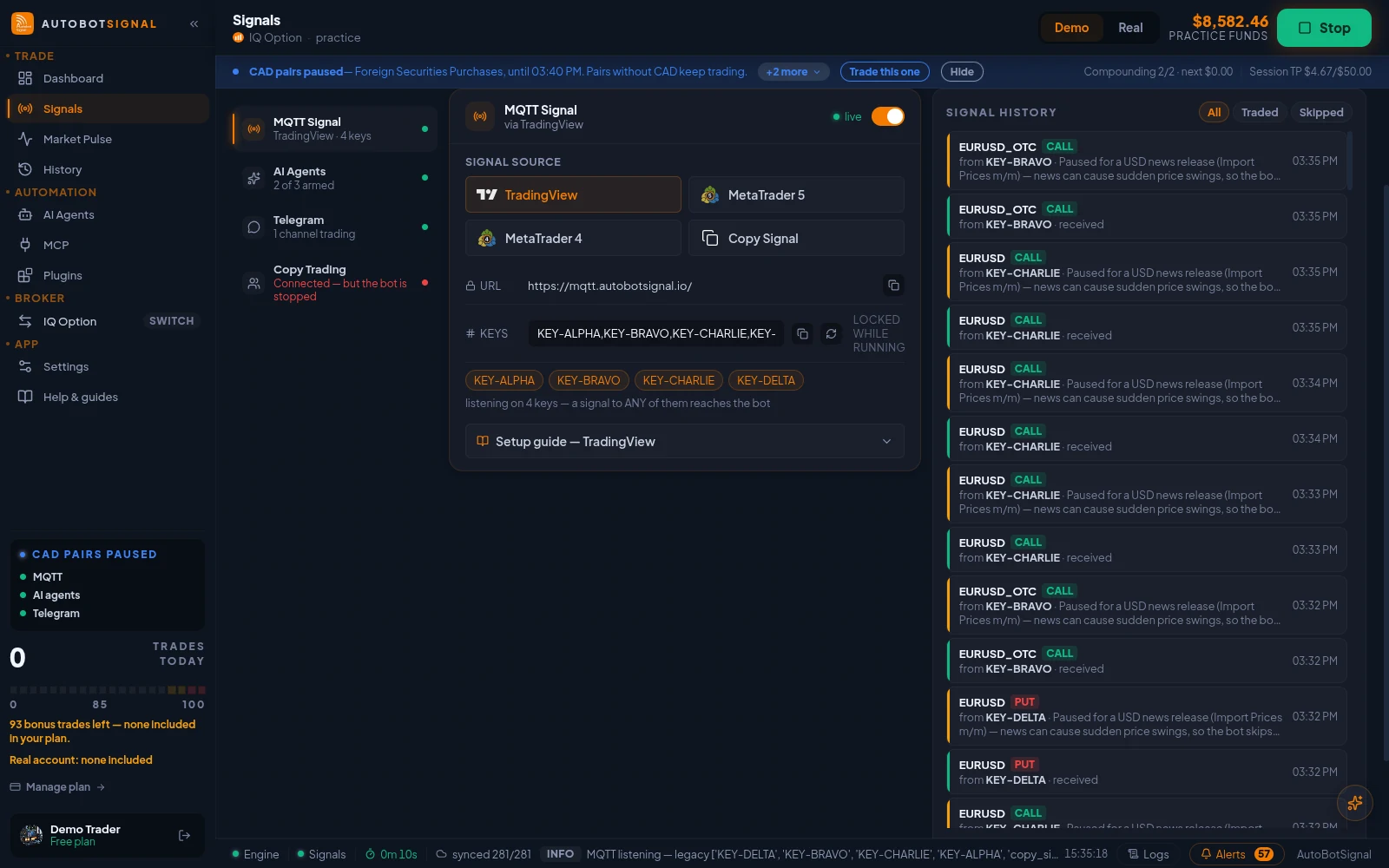
Signals → Sources → MQTT Signal: the webhook URL, your signal keys, and the TradingView, MetaTrader 5, MetaTrader 4 and Copy Signal senders. - 5
Set your risk rules
Set stake, expiry, daily trade cap and session stop-loss/take-profit. These are enforced on every signal before it executes.
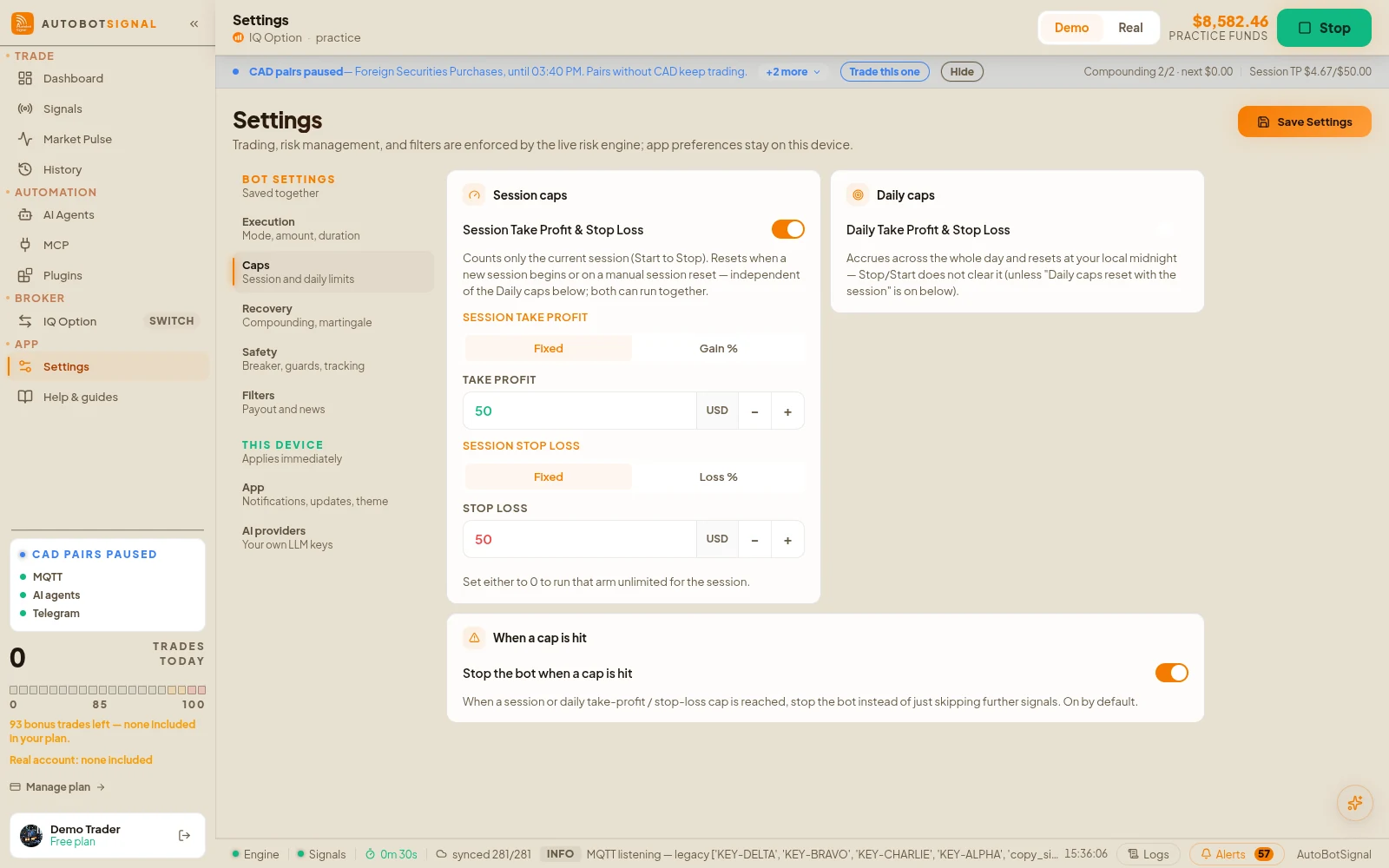
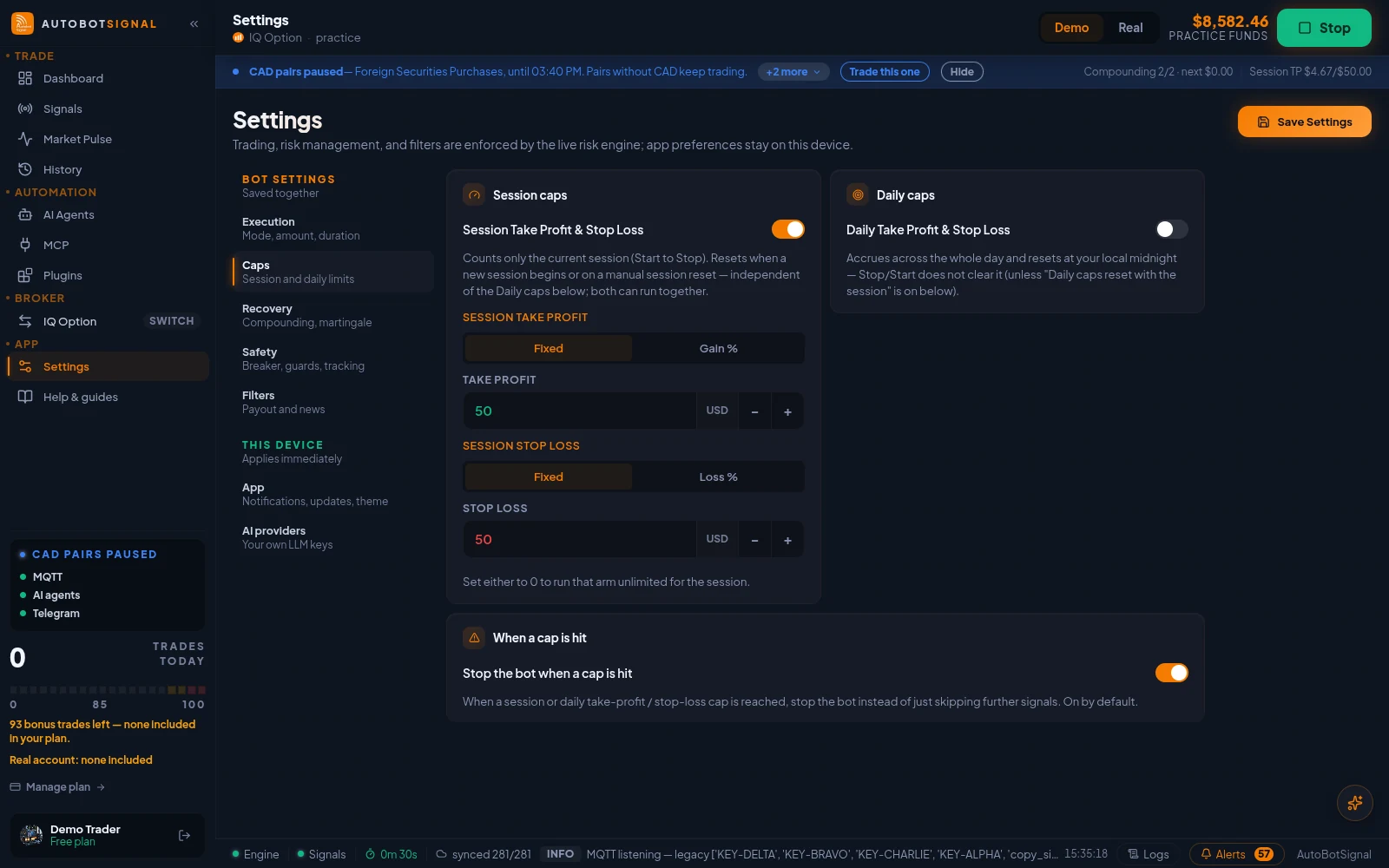
Settings → Caps: session take-profit and stop-loss, daily caps, and whether the bot stops when a cap is hit. - 6
Arm the session and watch
Start the session and watch the live log. Every signal shows whether it traded, and if not, which rule stopped it.
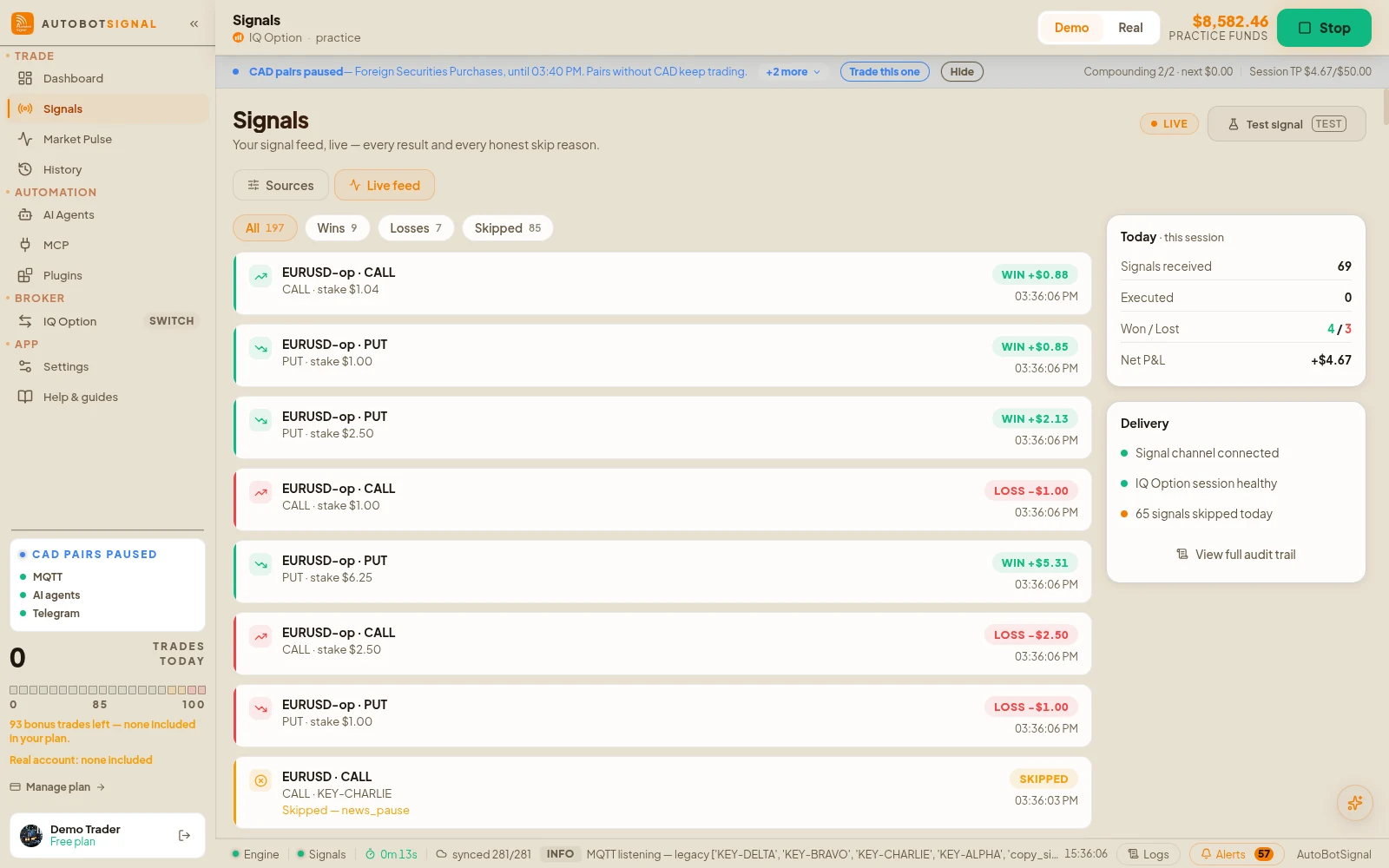
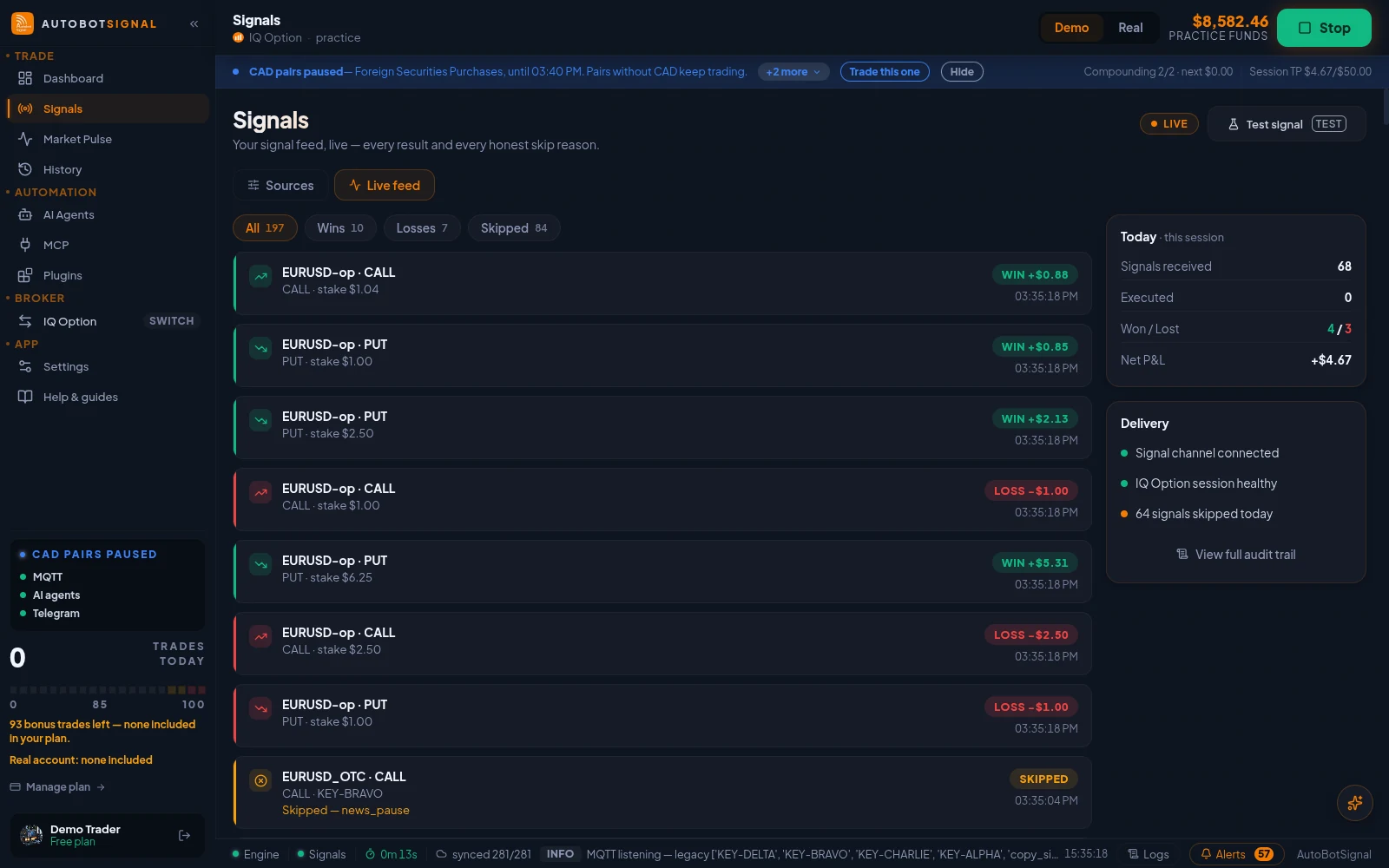
Signals → Live feed: every signal as it arrives, traded or skipped with the reason. - 7
Review the journal
After the session, review the journal to see what each signal source actually produced before you change anything.
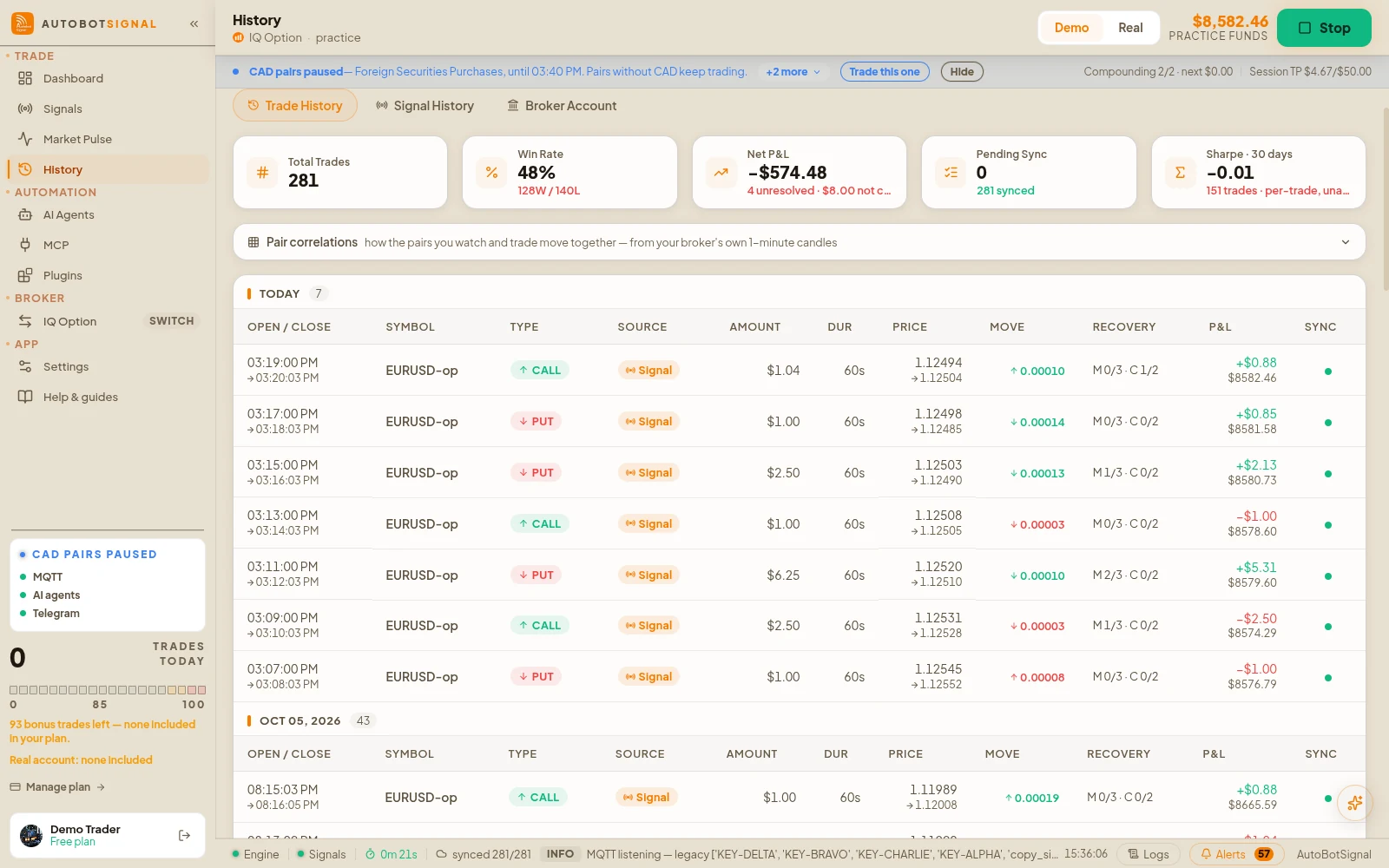
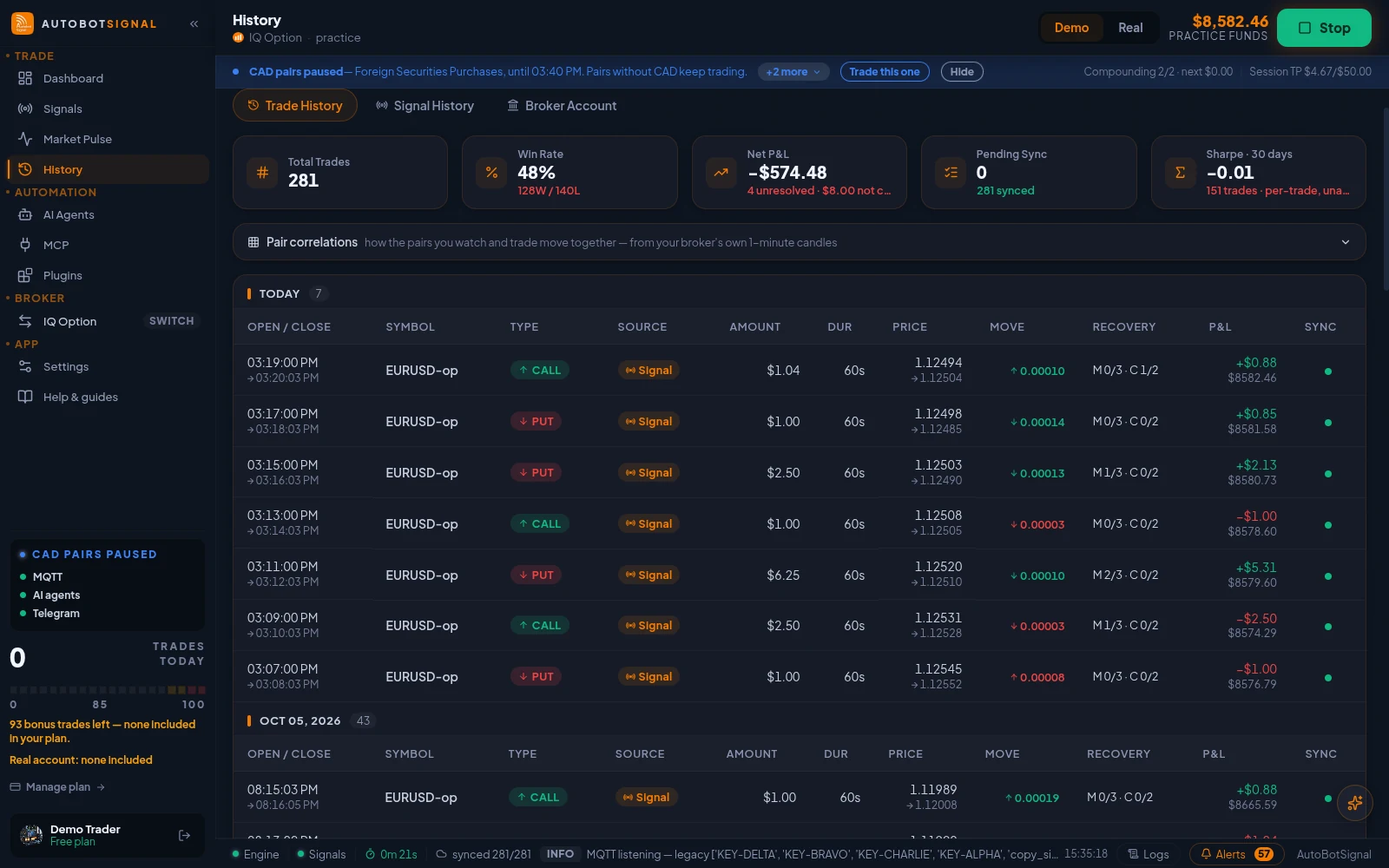
History → Trade History: every order with price, recovery step, result and sync state.
Your first session, end to end
Get set up
- Create a free account and install the desktop app
- Connect one broker — Deriv uses a token, the rest use email and password
- Pick one signal source to start with, not three
- Select demo mode
Set your limits, then arm
- Set the stake per trade
- Set the expiry your signals are meant for
- Set a daily trade cap and a session stop-loss
- Arm the session and watch the first few signals arrive


Guides for every screen of the app
The same text as the app's own Help & guides panel, with screenshots of the current release.
Dashboard
Win rate, P&L, the equity curve, and the risk state the engine is enforcing right now.
Signals
Switch sources on, point your senders at the webhook, and watch every signal arrive with its reason.
Settings
Execution, caps, the ladders, the guards and the filters, enforced on every signal.
AI Agents
Describe a strategy in plain words; the agent trades it through the same risk engine.
Brokers
Connect the account you already have; the app holds the session and places the trades.
All guides
Every screen of the desktop app, explained.
Questions
Connect one broker on demo with one signal source, and watch a full session before changing anything. Most early problems come from running several sources at once and not knowing which produced a given trade.
Start on a demo account. Automated trading can lose money and no win rate or profit is guaranteed — you are responsible for the rules you configure.
Start your first session
Create an account, install the app, and start a 7-day free trial to run a demo session end to end.