Desktop app guide
Plugins — how it works in the AutobotSignal desktop app
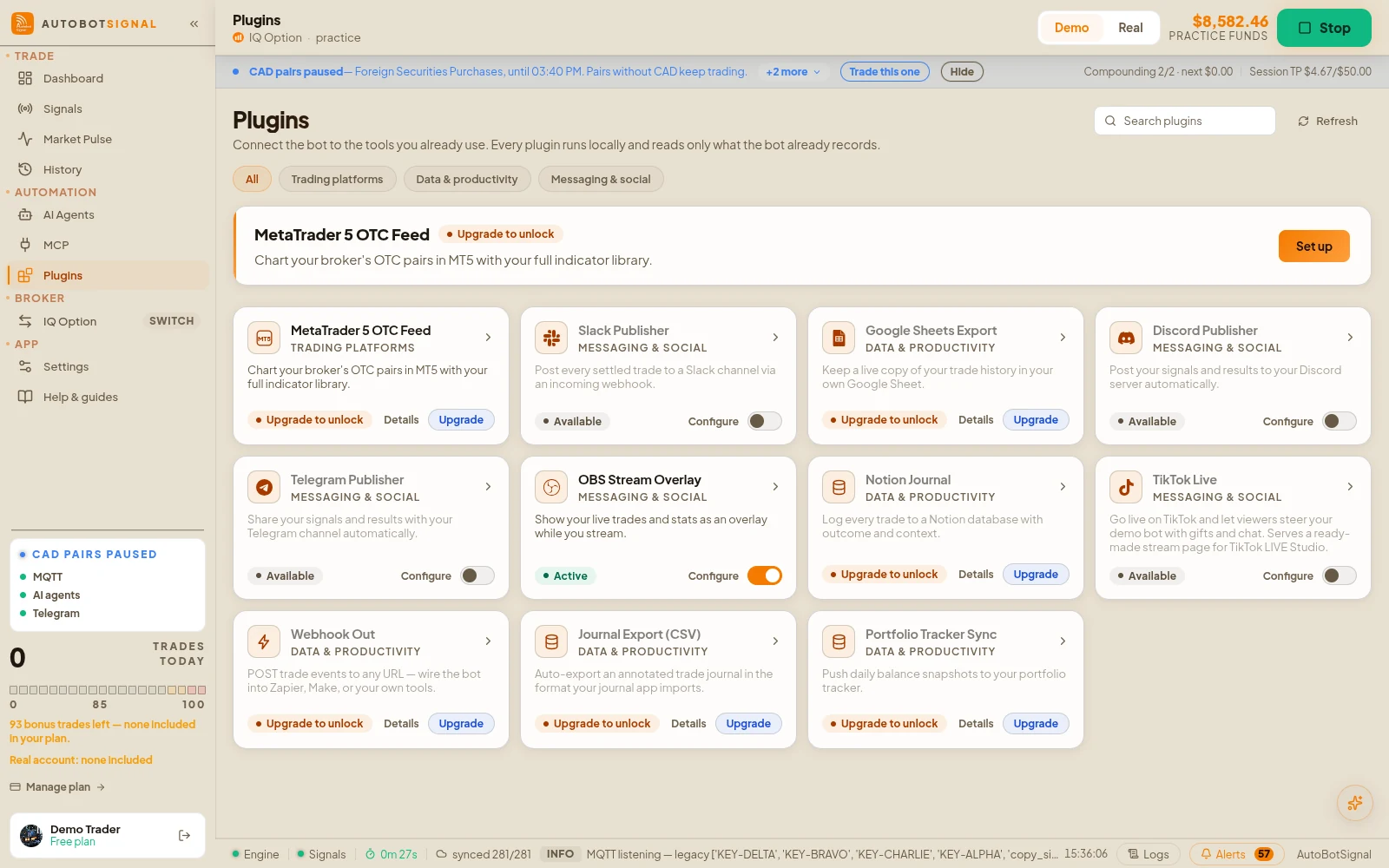
Connect the bot to tools you already use — chart OTC pairs in MetaTrader 5, or post your results to Discord and Telegram. Every plugin runs on this computer and only reads what the bot already records; nothing is shared until you enable it. Which plugins your plan includes comes from your account — a locked card shows an Upgrade pill, and cards marked Coming soon are on the roadmap but not built yet.
Plugins in the desktop app
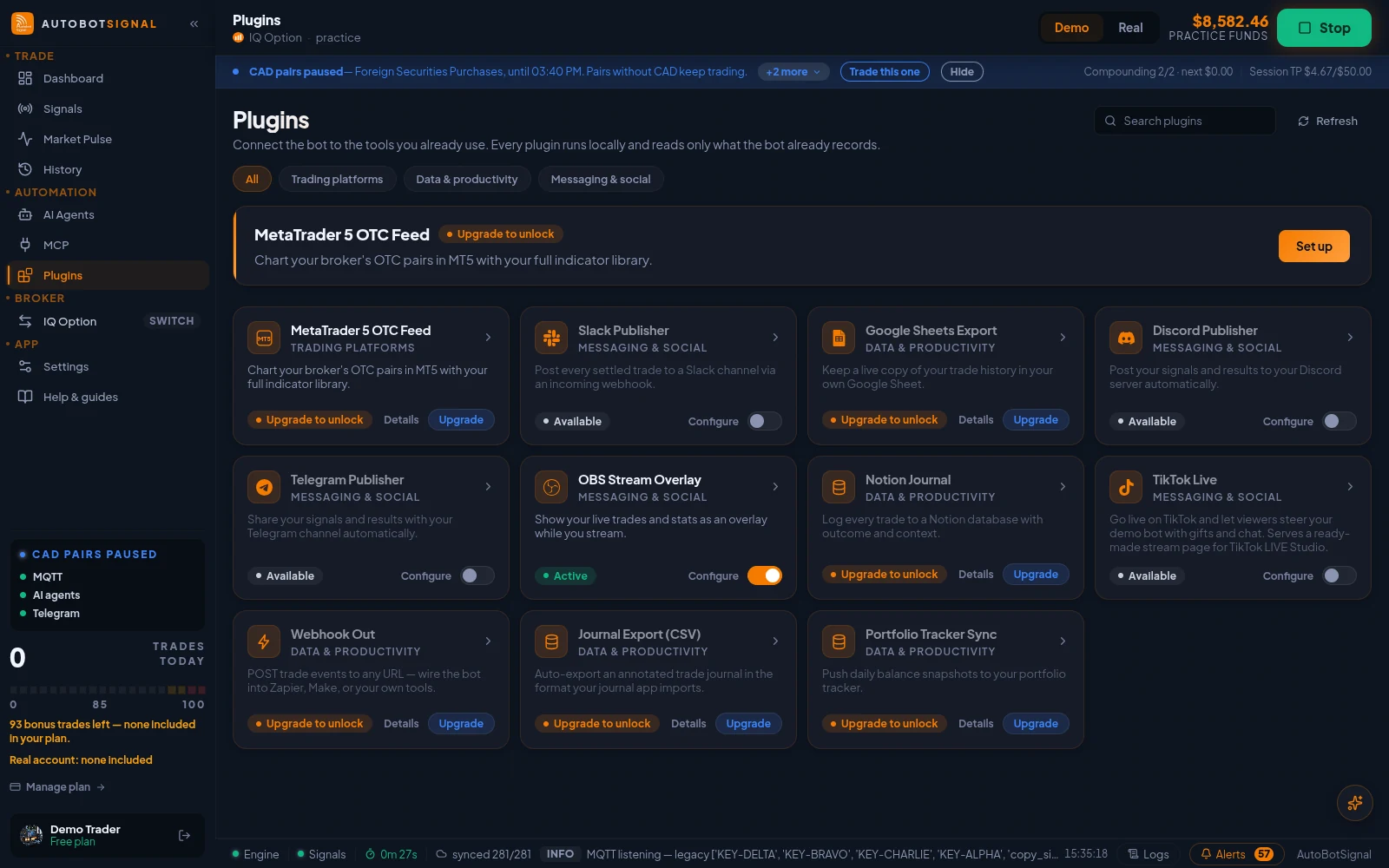
Real screenshots of the current release on a practice account.
How Plugins works
- 1
Enable a plugin
Open Plugins, click a card, and flip the switch in the panel. A plugin that needs details (a webhook, a bot token) has a small form right there — Save, then enable. Disabling stops it immediately: the MT5 feed closes its port, publishers stop posting.
- 2
MetaTrader 5 OTC Feed — get MetaTrader
MT5 is free and separate from your broker account here. Windows and Mac: install MetaTrader 5 from any MT5 broker or metatrader5.com — a demo terminal is fine, charts need no MT5 account. Linux: there is no official MT5; it runs under Wine and is an advanced setup — the bot’s own Market Pulse charts are the simpler path.
- 3
MT5 feed — install the connector
Enable the plugin, then click Download MT5 connector in its panel. In MT5: File, then Open Data Folder, drop the file into MQL5/Experts, and restart MT5. Then in Tools → Options → Expert Advisors, tick Allow WebRequest and add http://127.0.0.1:8790 (the port shown in the panel).
- 4
MT5 feed — chart
Drag AutoBotSignalFeed onto any chart. Within a minute an AutoBotSignal group appears in Market Watch with your broker’s pairs — open charts on them and every MT5 timeframe and indicator works. Keep this app running: the charts are fed by the bot, freeze when it closes, and back-fill when it returns.
- 5
Discord and Telegram publishers
These post each settled trade to a channel YOU own. Discord: create a channel webhook (Server Settings → Integrations → Webhooks) and paste the URL. Telegram: make a bot with @BotFather, add it to your channel as admin, and paste the token plus the channel @name. This is separate from reading Telegram signal channels in Signals.
Good to know
What the app does, and does not do, here
- MT5 chart frozen? The bot app isn’t running, the plugin is off, or the broker is disconnected — the connector says which in the chart’s top-left corner.
- The MT5 symbols are chart-only by design: you analyse in MetaTrader, trades stay in the bot. Nothing you do on the MT5 chart can place a trade.
- Two brokers, two histories: switching broker in the bot gives MT5 a new symbol group — an OTC pair is its broker’s own instrument, never merged with another broker’s.
- Publisher tokens never leave this computer except to Discord/Telegram themselves, and the app never displays a saved token back — the form just shows that one is set.
Start on a demo account. Automated trading can lose money and no win rate or profit is guaranteed — you are responsible for the rules you configure.
Run it on demo first
Install the desktop app, connect a practice account and see every rule on this page enforced before any real money is involved.