Desktop app guide
MCP — AI assistants — how it works in the AutobotSignal desktop app
Lets any AI assistant that speaks the Model Context Protocol read this bot and, with your permission, manage it: check status, read the market pulse and your history, give advice, consult your agents, adjust risk caps, take a screenshot of the app, even walk you to the right page. You set it up once and every compatible assistant can use it. Off by default; you grant and revoke access with one switch, and everything an assistant does is recorded.
MCP — AI assistants in the desktop app
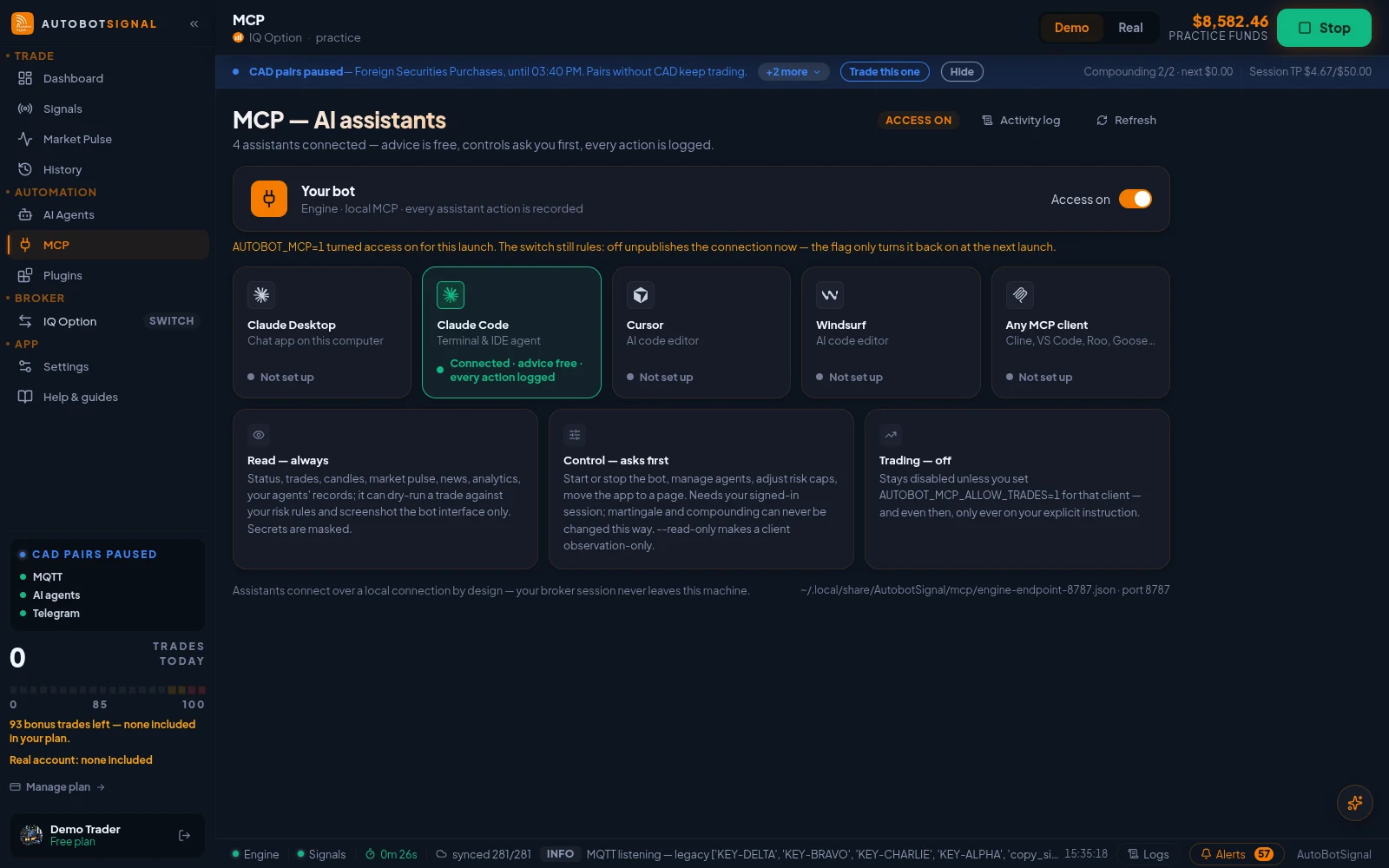
Real screenshots of the current release on a practice account.
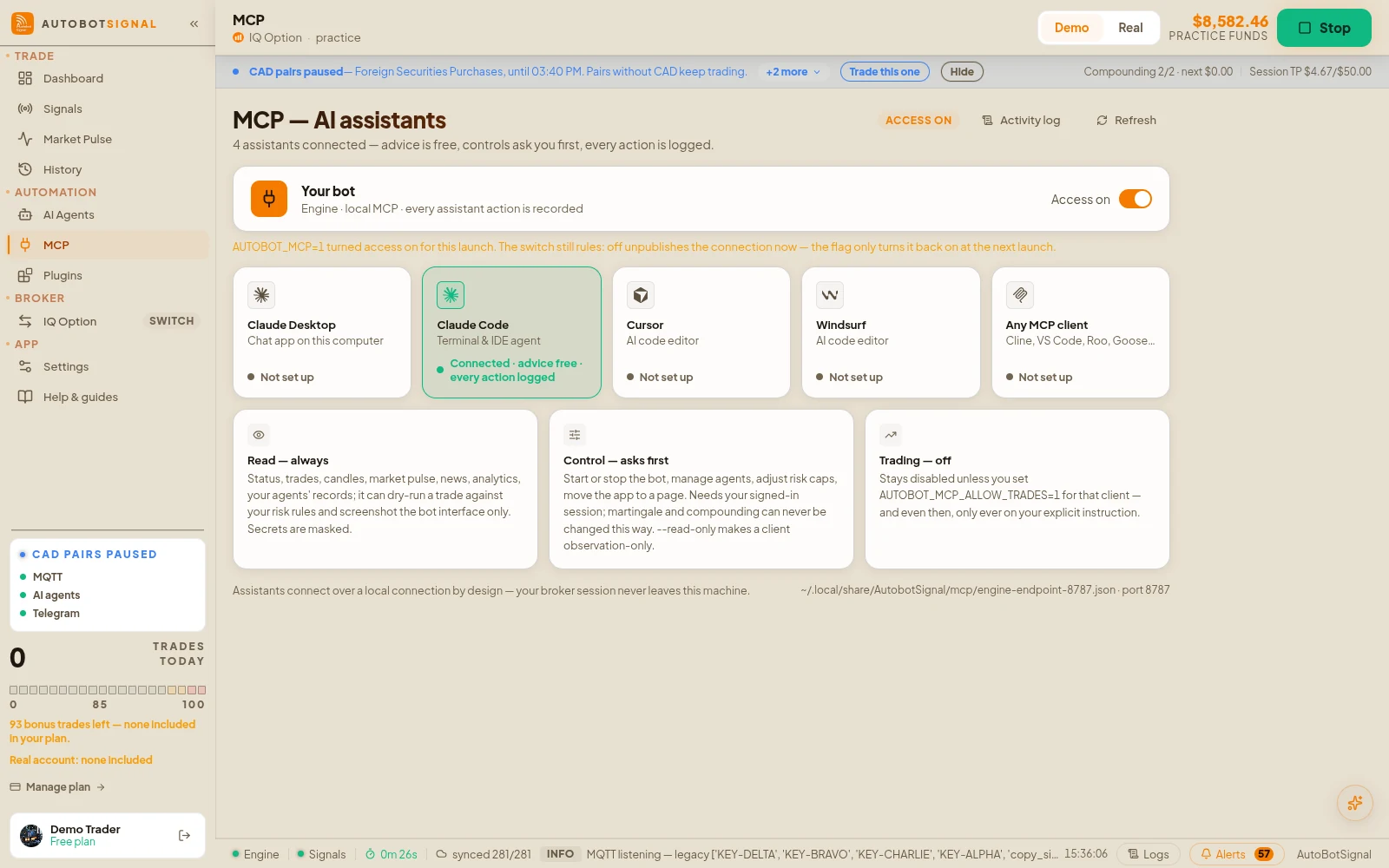
How MCP — AI assistants works
- 1
Grant access with the switch
Turning it on publishes a connection file on this computer that MCP clients running under your account can discover. The grant survives restarts until you turn it off here — turning it off withdraws the file immediately.
- 2
Connect your assistant
The page shows a ready-made configuration snippet built for this exact install. Claude Desktop, Cursor, Cline, Windsurf, Roo and Gemini CLI read it as-is; VS Code takes the same block under a list it names “servers”, Goose adds it on its Extensions screen, and Claude Code uses the one-line terminal command instead. Paste once; the client finds the engine and its per-launch key on its own from then on. Assistants that connect over the internet instead of launching a program on this PC can't use it: the connection is local by design.
- 3
Know the three permission levels
Reading — status, settings, trades, events, logs, candles, market pulse, agent records — is always available while access is on. Control — start/stop, agents, whitelisted risk settings, navigation — requires your signed-in session and tells the assistant to confirm with you first. Trading tools stay off unless you add the opt-in variable to that client’s own configuration.
- 4
Read the trail
Every assistant call — including ones the engine refused — is written to the engine log. The Activity log button on the MCP page jumps straight there; assistant entries are attributed so they cannot be mistaken for the app’s own actions.
Good to know
What the app does, and does not do, here
- Provider API keys can never travel through MCP — an assistant that tries is refused and told keys are entered in the app only.
- Martingale and compounding cannot be changed over MCP at all, and the risk-settings whitelist covers caps, filters and guards only.
- When an assistant moves the app to another page, a toast names it as the cause — the app never moves silently.
- Consulting an agent through an assistant runs the agent’s real decision path but is advisory only: no trade, no paper entry, no effect on its schedule.
- Add --read-only to the client command to make that assistant observation-only; the house rule stands regardless — an assistant only ever trades on your explicit instruction.
Start on a demo account. Automated trading can lose money and no win rate or profit is guaranteed — you are responsible for the rules you configure.
Run it on demo first
Install the desktop app, connect a practice account and see every rule on this page enforced before any real money is involved.